Gmail Security: 2-Step Verification and App Passwords
Turn on 2-Step Verification, generate an app password for mail clients that cannot use OAuth, and understand why your ordinary Gmail password stopped working.
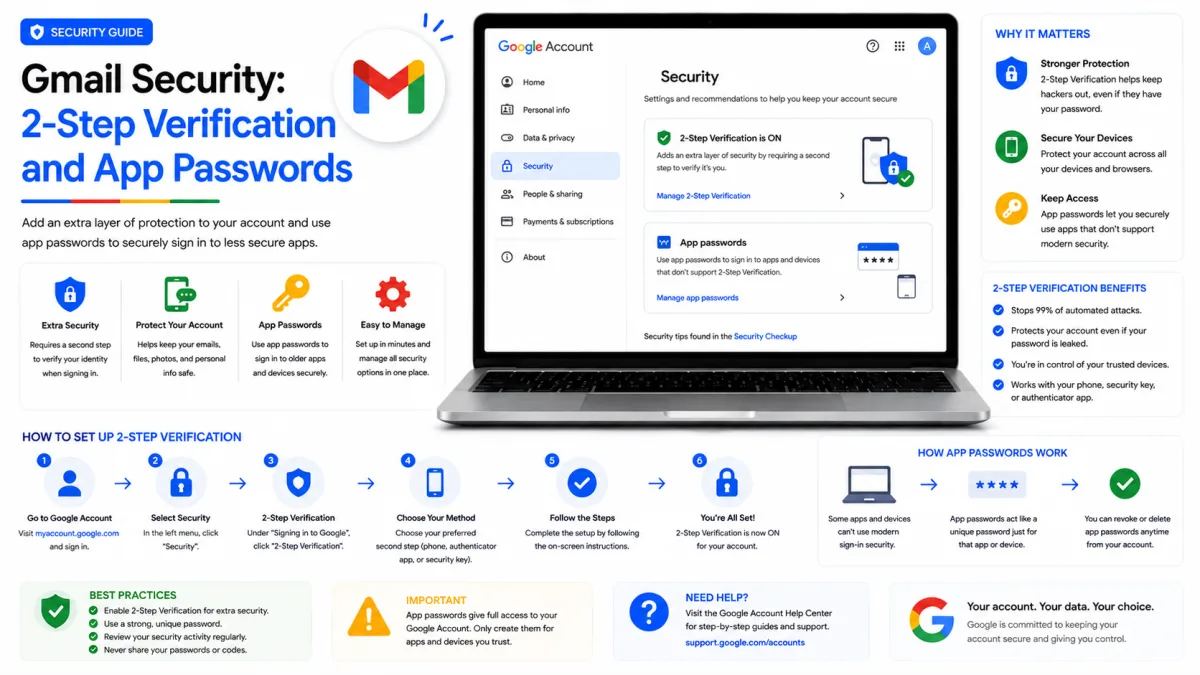
If you have ever typed your Gmail password into Outlook or Thunderbird and been told it is wrong, nothing is wrong with your password. Google stopped accepting ordinary passwords over mail protocols. This guide covers the two things that replaced it — 2-Step Verification and app passwords — and how to set both up properly.
What changed, and why your password stopped working
Google spent several years removing what it called "less secure app" access: the ability for any program to connect to your account with just a username and password. That access ended for personal Gmail accounts in 2022, and for managed accounts in March 2025. Since then, connecting over IMAP, SMTP or POP with your ordinary password simply fails.
There are now two ways in. Either your mail client signs in through Google itself — the "Sign in with Google" flow, technically called OAuth — or, if it cannot do that, you give it a purpose-made app password instead. Modern clients almost all support the first. The second exists for everything that does not.
If your setup fails with 535 5.7.8 Username and Password not accepted, this is the reason, and no amount of retyping your password will change it.
Turn on 2-Step Verification
Everything here depends on 2-Step Verification, because app passwords are only offered once it is switched on. It is also, on its own, the single most effective thing you can do to protect the account.
Sign in to your Google Account.
Open Security & sign-in.
Under "How you sign in to Google", select 2-Step Verification.
Follow the prompts to add your second step.
Choosing a second step
Google offers several, and they are not equally good.
Google prompts — a tap on a phone already signed in. Convenient, and resistant to someone intercepting a code.
An authenticator app — six-digit codes generated on your device, working offline. A solid default.
A security key or passkey — the strongest option, because it cannot be phished at all.
Text messages — better than nothing, but the weakest choice. Codes sent by SMS can be intercepted, and phone numbers can be taken over by someone persuading a mobile operator to transfer them.
If SMS is your only option, use it — a weak second step still beats none. But add something stronger when you can.
Save your backup codes
During setup Google offers a set of one-time backup codes. Save them somewhere you will still be able to reach if your phone is lost, stolen or replaced — printed and filed, or in a password manager you can open from another device.
Storing them only on the phone that generates your codes defeats the point entirely. Backup codes are what stand between "I lost my phone" and "I lost my account", and account recovery without them is slow and uncertain.
App passwords
An app password is a 16-character code that lets one specific application into your account without using your real password. You need one only when the application cannot sign in through Google directly.
Do you actually need one?
Probably not, if your software is current. Most modern mail clients, phone mail apps and desktop programs support signing in with Google, which is both simpler and safer — it issues a limited token and never touches your password.
You need an app password when the software cannot do that. Typically:
Older desktop mail clients that predate OAuth support
Command-line and terminal mail tools
Printers and scanners with a "scan to email" feature
Network storage devices sending notification email
Scripts and automation that talk raw SMTP
Creating one
Make sure 2-Step Verification is on. Without it, the option does not exist.
Go to your Google Account's app passwords page.
Give the app password a name you will recognise later — "Thunderbird laptop", "office scanner".
Create it, and copy the 16-character code shown.
Paste that code into the application where it asks for your password.
The code is shown once. If you lose it, delete that entry and generate a new one — there is no way to look it up again.
Name each one properly. In two years you will have several, and an unlabelled list gives you no way to tell which device you are revoking access from.
Three things that catch people out
Changing your main password revokes every app password. This is why mail clients all stop working at once after a password reset. It is deliberate — if someone had your password, they should not keep access through a side door. You will need to generate fresh app passwords for each device afterwards.
Work and school accounts may not offer them. An administrator can disable app passwords across an organisation, in which case the option never appears and OAuth is the only route.
An app password is not limited to one purpose. Despite the name, it grants broad access to your account. Treat it like a password: do not reuse one across devices, and delete entries for devices you no longer own.
How this relates to passkeys
Passkeys are a separate thing, and easy to confuse with the above. A passkey replaces your password when signing in to Google itself — you unlock your device instead of typing anything. An app password does the opposite job: it lets an old application authenticate when it cannot use any modern method.
You may well end up with both: a passkey for signing in day to day, and an app password for the scanner in the corner of the office that still speaks SMTP and nothing else.
Run Google's Security Checkup
Rather than hunting through settings pages one at a time, Google has a single tool that reviews the lot: Security Checkup, at myaccount.google.com/security-checkup. It walks you through your devices, recent security activity, third-party apps with account access, and your sign-in methods in one pass, flagging anything worth a second look.
Run it occasionally, and straight away if anything feels wrong. Three things deserve close attention while you are in there:
Your devices — everywhere the account is currently signed in. Sign out anything you do not recognise.
Third-party apps with account access — services you connected, sometimes years ago and possibly once. Remove what you no longer use.
App passwords — delete entries for devices you no longer own.
Old access is the kind that gets forgotten and later exploited. A laptop you sold, a service that has since been breached, a printer that went to the recycler — each one is a door left open behind you. Closing them takes a couple of minutes a year, and Security Checkup puts all three lists in front of you at once.
Checked against the source
Official sources
Enquiries
Frequently asked questions
Why doesn't my Gmail password work in Outlook or Thunderbird?
Google no longer accepts ordinary passwords over IMAP, SMTP or POP. Use a client that signs in with Google, or generate an app password.
Do I need 2-Step Verification to create an app password?
Yes. The app password option only appears once 2-Step Verification is switched on.
What does error 535 5.7.8 mean in Gmail?
Your credentials were rejected. It almost always means an ordinary password was used where an app password or OAuth sign-in is required.
Next delivery
Keep reading
Gmail Sign Up
How to Create a Gmail Account
Create a Gmail address step by step — how to find a username that isn't taken, what to do when Google asks for a phone number, and the shortcuts worth avoiding.
6 min read
Gmail Troubleshooting
Gmail Not Working? Common Fixes
Why Gmail stops receiving mail, refuses to send, or loses messages you know arrived — and how to find the cause rather than guessing at it.
6 min read
Gmail Password Reset
How to Reset Your Gmail Password
Reset a forgotten Gmail password, and get through Google's account recovery when you have no recovery phone or email — including what actually improves your chances of passing.
6 min read
Gmail Login
How to Log In to Gmail
Sign in to Gmail on any device — including what to do when Google asks for a passkey instead of your password, and how to fix the errors that stop you getting in.
7 min read
Gmail IMAP
Gmail IMAP Settings
Gmail’s IMAP server, port and encryption settings—plus secure sign-in options and fixes for duplicate messages caused by the All Mail folder.
3 min read
Gmail SMTP
Gmail SMTP Settings
Gmail's outgoing mail server, port and encryption for any client or device — plus sending limits, and how to send from another address through Gmail.
5 min read