Gmail Not Working? Common Fixes
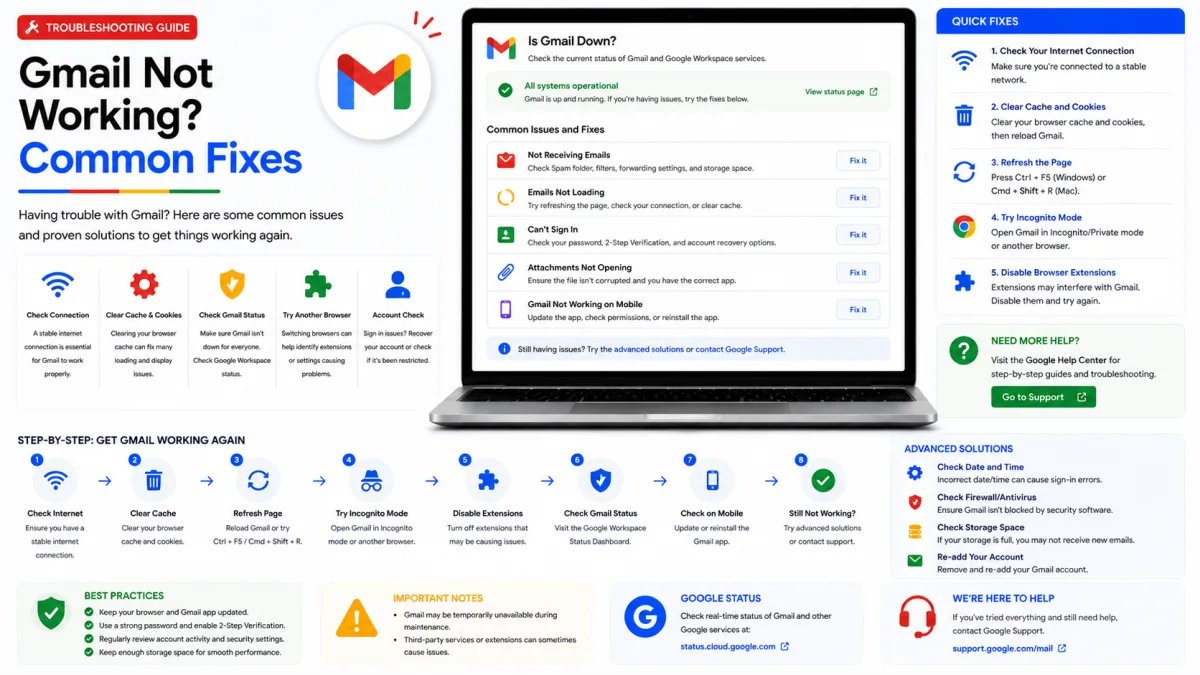
Why Gmail stops receiving mail, refuses to send, or loses messages you know arrived — and how to find the cause rather than guessing at it.
Server settings
Gmail
- IMAP incoming SSL/TLS
- SMTP outgoing STARTTLS
- POP3 download SSL/TLS
imap.gmail.com
port 993
smtp.gmail.com
port 587
pop.gmail.com
port 995
- Authentication
- Use “Sign in with Google” (OAuth). Older clients without Google sign-in may require an app password from an eligible account with 2-Step Verification.
- IMAP access
- Always enabled for personal Gmail accounts; Workspace administrators may restrict it
- Alt SMTP port
- 465 with SSL/TLS
- Username
- Your complete Gmail address, such as name@gmail.com
- POP access
- Enable it first in Gmail under Settings → See all settings → Forwarding and POP/IMAP
Most Gmail problems fall into one of four categories: you cannot sign in, messages are not arriving, mail will not send, or existing messages appear to have disappeared. This guide uses a systematic process to identify the cause before you change settings that may already be correct.
You cannot sign in
If Gmail rejects your password or asks for something you cannot produce, that is its own subject. Our guide to signing in to Gmail covers passkey prompts, verification codes and the specific error messages, and if the password itself is gone, start with how to reset your password instead.
Mail is not arriving
Work down these in order. The first cause is by far the most common and the least obvious.
Your storage is full
Gmail does not have its own storage. It shares 15 GB with Google Drive and Google Photos, and when that runs out, Gmail stops accepting new mail. Google's own guidance is blunt about the consequence: with storage full you may be unable to send or receive.
This can be confusing because the inbox may look normal while files you own in Google Drive, photo and video backups, WhatsApp backups or large Gmail attachments consume the shared storage allowance. Files merely shared with you normally use the owner’s storage, not yours.
Check your storage breakdown in your Google account. If you are close to the limit:
Empty Spam and Trash — both still count against your quota.
Search
larger:10Min Gmail to find the heaviest messages, and delete what you do not need.Look at Google Photos and Drive, which are usually the real culprits rather than email.
Or buy more storage, which is often the sensible answer if the account matters.
Deleted mail sits in Trash for 30 days and still occupies space, so empty Trash afterwards or nothing changes.
A filter caught it
Filters run before you ever see a message, and can archive, delete, label or forward it silently. A rule you wrote years ago for one newsletter can quietly swallow anything matching a pattern you have forgotten.
Open Gmail settings, go to Filters and Blocked Addresses, and read every rule — particularly any that skip the inbox or delete. This takes two minutes and resolves a surprising share of "missing email" cases.
The sender is blocked
On the same settings tab, below your filters, is the list of blocked addresses. Blocked mail goes straight to Spam. It is easy to block someone by accident from the message menu, and easy never to notice.
Forwarding is sending it elsewhere
Check Forwarding and POP/IMAP in settings. If forwarding is on and set to delete Gmail's copy, your mail arrives and immediately leaves. Worth checking on any account you did not set up yourself, or one that has been used by someone else.
It arrived, but not where you looked
Gmail sorts aggressively. Before assuming a message never came, check Spam, check the Promotions and Social tabs, and check All Mail rather than just the inbox — anything archived is still in your account, just not in front of you.
Search across everything with in:anywhere, which includes Spam and Trash. If the message turns up there, the delivery worked and the problem is a rule or a tab, not the sender.
A mail client took it
Start by updating the mail client and reconnecting the account through “Sign in with Google”. Google no longer supports third-party applications that require you to share your ordinary Google Account password.
If the software cannot use Google sign-in, it may require an app password. Changing your main Google Account password revokes existing app passwords, so devices using them may all stop connecting after a password change.
If you see “535 5.7.8 Username and Password not accepted”, remove the saved account credentials and reconnect using Google sign-in or a newly generated app password if your account is eligible.
Mail will not send
Sending and receiving are configured separately, so an account can receive perfectly while nothing leaves the outbox.
In a mail client: almost always authentication. Google no longer accepts ordinary passwords over SMTP — you need a client that signs in with Google, or an app password. Our SMTP settings guide has the server details.
In the web interface: check storage again, since a full account blocks sending too.
Large attachments: Gmail caps attachment size and will offer a Drive link instead. If the message will not go, the attachment is a likely reason.
Sending limits: Google caps daily volume to contain compromised accounts. Hitting it produces a temporary block that clears on its own.
A mail client that used to work has stopped
This is nearly always one of two things, and both are covered in our Gmail security guide:
Google stopped accepting plain passwords over IMAP and SMTP, so an older client that has not been updated will suddenly fail with credentials that look correct.
You changed your Google password, which revokes every app password at once. Every device stops together — a distinctive symptom worth recognising.
The error to look for is 535 5.7.8 Username and Password not accepted.
Gmail is slow, blank, or will not load
Before assuming a fault, try the web interface in a private window. That single test separates a browser problem from an account problem.
Works in private browsing: the cause is an extension or stale cookies. Disable extensions — ad blockers and privacy tools most often — then clear cookies for google.com.
Make sure the browser is currently supported and updated. If Gmail works in a private window, disable extensions one at a time and remove Gmail or Google site data before signing in again. Do not clear every browser password or all browsing data unless necessary.Fails there too: try another browser or device. If it fails everywhere, it is not local.
Very large mailbox: Gmail's basic HTML view loads when the full interface struggles, which is useful on a slow connection.
Is Gmail actually down?
Gmail occasionally experiences a service disruption. Check the official Google Workspace Status Dashboard before changing account or mail-client settings. If Gmail is marked as disrupted and the problem affects multiple devices, wait for Google to resolve it rather than altering a configuration that was working previously.
Working out which it is
Rather than trying fixes at random, narrow it down first:
Does it fail on every device, or one? One device means a client or browser problem. All devices means the account.
Did it stop suddenly, or gradually? Sudden usually means a change — a password reset, an update, a new filter. Gradual usually means storage.
Is it one sender, or everyone? One sender points at a filter or a block. Everyone points at storage or forwarding.
Can you send but not receive, or the reverse? That distinction alone eliminates half the possibilities.
Two minutes spent on those questions usually beats an hour of changing settings, and it avoids the common trap of fixing something that was never broken.
Enquiries
Frequently asked questions
Why has Gmail stopped receiving emails?
Most often full storage, since Gmail shares 15 GB with Drive and Photos and stops accepting mail once it runs out. After that, check filters, forwarding and blocked senders.
Can full storage stop me sending as well as receiving?
Yes. Google's help states that when storage is full you may be unable to send or receive.
Where do emails go if a filter archives them?
Into All Mail. They are still in your account, just not in your inbox — search All Mail rather than the inbox to find them.
Why does Gmail say my storage is full when my inbox looks empty?
Gmail shares storage with Google Drive, Google Photos and some device backups. Large files you own, photos, videos and email attachments may consume the allowance even when the inbox looks small. Files merely shared with you normally use their owner’s storage.
Why am I not receiving email from one specific sender?
Usually a filter or a block rather than a delivery failure. Check Filters and Blocked Addresses in Gmail settings — the blocked list sits below your filters — and search in:anywhere to see whether the message arrived and was diverted.
Next delivery
Keep reading
Gmail Sign Up
How to Create a Gmail Account
Create a Gmail address step by step — how to find a username that isn't taken, what to do when Google asks for a phone number, and the shortcuts worth avoiding.
6 min read
Gmail Security
Gmail Security: 2-Step Verification and App Passwords
Turn on 2-Step Verification, generate an app password for mail clients that cannot use OAuth, and understand why your ordinary Gmail password stopped working.
6 min read
Gmail Password Reset
How to Reset Your Gmail Password
Reset a forgotten Gmail password, and get through Google's account recovery when you have no recovery phone or email — including what actually improves your chances of passing.
6 min read
Gmail Login
How to Log In to Gmail
Sign in to Gmail on any device — including what to do when Google asks for a passkey instead of your password, and how to fix the errors that stop you getting in.
7 min read
Gmail IMAP
Gmail IMAP Settings
Gmail’s IMAP server, port and encryption settings—plus secure sign-in options and fixes for duplicate messages caused by the All Mail folder.
3 min read
Gmail SMTP
Gmail SMTP Settings
Gmail's outgoing mail server, port and encryption for any client or device — plus sending limits, and how to send from another address through Gmail.
5 min read