How to Reset Your Gmail Password
Reset a forgotten Gmail password, and get through Google's account recovery when you have no recovery phone or email — including what actually improves your chances of passing.
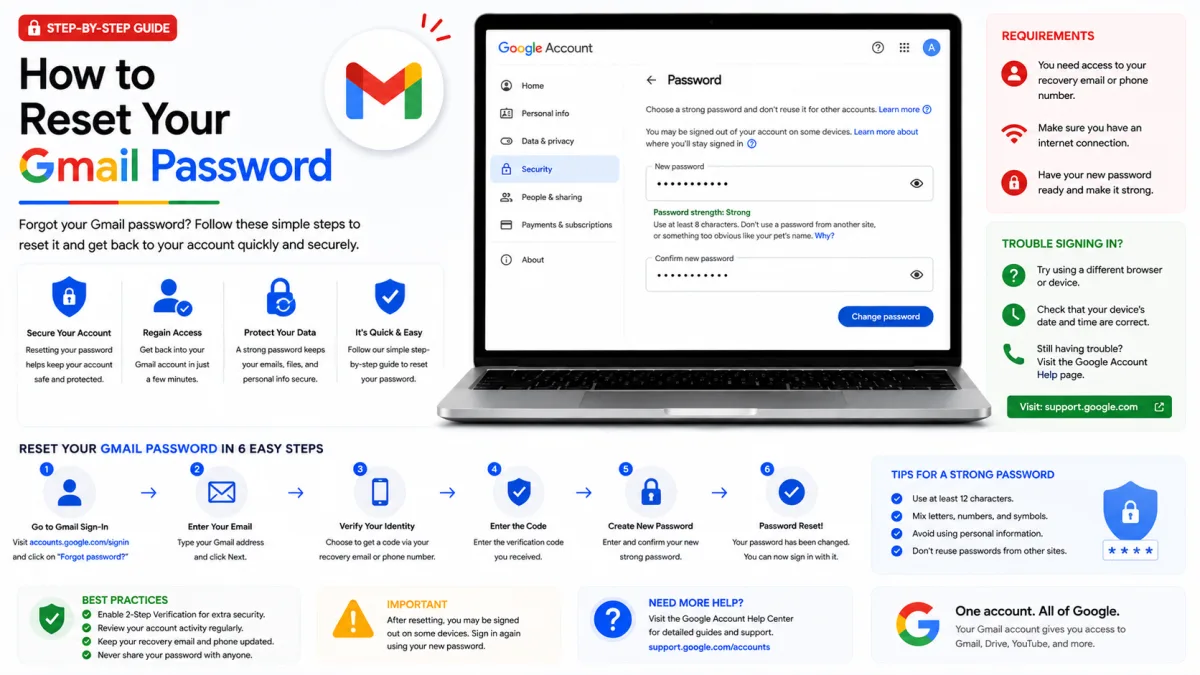
There are two situations here, and they are very different. If you know your current password and simply want a new one, it takes about a minute. If you are locked out, you are facing Google's account recovery process — and how you approach it genuinely changes whether you get back in. This guide covers both, plus the scams that target people in the second situation.
If you know your current password
Sign in to your Google Account.
Open Security & sign-in.
Under "How you sign in to Google", choose Password. You may be asked to sign in again.
Enter your new password twice and confirm.
Choose a password you have not used on this account before. Google checks, and will reject a repeat.
If you are locked out
Go to the sign-in page and enter your email address.
Select Forgot password?
Answer whatever Google asks. The questions vary by account — there is no fixed sequence.
When you reach the reset screen, choose a new password.
You can also go straight to Google's account recovery page rather than starting from sign-in. Either route leads to the same process.
How to actually pass account recovery
This is the part worth reading properly, because recovery is not a form — it is Google weighing up how likely it is that you are the account owner. Several things shift that judgement, and most people get them wrong.
Answer everything. Never skip.
Take your best guess rather than moving past a question. Wrong guesses do not eject you from the process, and a guess contributes something while a skip contributes nothing. This single habit is probably the biggest difference between people who get back in and people who do not.
There is no attempt limit
You can try recovery as many times as you need. If you get "Google couldn't verify this account belongs to you", that is not final — you can go through it again, and doing so with better answers or from a more familiar device often works.
Use a device and place you normally use
Do it on the computer or phone you usually sign in with, in the browser you usually use, from home or work rather than somewhere new. Google weighs familiarity heavily. Attempting recovery on a borrowed laptop in a different country is close to the worst possible circumstance, even when every answer is right.
Be precise about old passwords
When asked for the last password you remember, give the most recent one you can. If you cannot recall it, use an older one you are sure about — more recent is better, but a confident old password beats a vague recent guess. Watch capitalisation and typos; details count.
One quirk worth knowing on phones: when you type a password on mobile, the first letter is not treated as case sensitive. That is deliberate, and it means a capitalised first letter from autocorrect will not fail you.
Give an email address you can actually open right now
If asked for a contactable email, use one genuinely connected to the account — a recovery address, an alternate sign-in address, or the contact address where Google sends service information.
Worth knowing: Google may send the code to the address you are trying to recover. That sounds circular, but it works if you can still read that inbox through a mail client or through forwarding you set up earlier. If you cannot, choose Try another way to move past it.
Check your spam folder
If you were expecting a message from Google's recovery team and cannot find it, look in spam or junk for one titled "Your Google support inquiry".
Beware of fake Gmail support numbers
Search for help with a locked Gmail account and you will find pages listing a phone number for "Gmail support" or "Google account recovery". Every one of them is a scam. Google does not operate a phone line for consumer password resets.
Google's own guidance is unambiguous: it never asks for your password or verification codes by email, phone call, or message. Enter those only at accounts.google.com and nowhere else.
The scam works because it targets people at their most desperate. Someone locked out of an account holding years of email will call a number that promises a human. The "agent" then asks for a verification code — the one Google just sent you — and with it takes the account permanently. If anyone asks you to read out a code, that is the moment to hang up.
What happens after you reset
Changing your password signs you out almost everywhere. The exceptions are worth knowing so nothing surprises you:
Devices you used to verify your identity during the reset stay signed in.
Some third-party apps you granted account access to keep working.
Home devices you linked to your account stay linked.
If you reset because you think someone else had access, those exceptions matter enormously. Review the apps with account access and unlink any home devices you do not recognise — otherwise an intruder may still hold a door you did not close.
Also expect mail clients to stop working until you update them. Any device using IMAP or SMTP with your old password needs the new one, or a newly generated app password if your account requires one.
Special cases
Work or school accounts
If your address was issued by an employer or school, standard recovery may not apply. Your administrator controls the account and can reset it — contact them rather than working through Google's consumer flow.
A child's account
For a child under 13 (or the equivalent age where you live), the parent managing the account resets the password through Family Link rather than through normal recovery.
Recovery that seems stuck
Google sometimes delays a recovery request deliberately, holding it for a period before deciding. This is a security measure, not a fault — it makes rapid account takeover much harder. If you are told to wait, waiting is genuinely the fastest route.
If you cannot get back in
Try again from your most familiar device, answering more questions than last time. If repeated attempts fail, the account may not be recoverable, and creating a replacement is the practical option. Before you do, set up recovery properly on the new one — a recovery phone, a recovery email, and 2-Step Verification with backup codes stored somewhere you will still have them.
That is the real lesson of every lockout: recovery is decided long before you need it, by whether you kept those details current.
Checked against the source
Official sources
Enquiries
Frequently asked questions
How many times can I try Google account recovery?
There is no limit. Wrong guesses do not lock you out of the recovery process, so a failed attempt is not the end.
Can I reset my Gmail password without a recovery phone or email?
Yes, but it is harder. Google asks other questions instead, and answering as many as possible from a device and location you normally use is what improves your chances.
Does Google have a support phone number for password resets?
No. Google never asks for your password or verification codes by phone, email or message. Any number claiming to be Gmail password support is a scam.
Next delivery
Keep reading
Gmail Sign Up
How to Create a Gmail Account
Create a Gmail address step by step — how to find a username that isn't taken, what to do when Google asks for a phone number, and the shortcuts worth avoiding.
6 min read
Gmail Troubleshooting
Gmail Not Working? Common Fixes
Why Gmail stops receiving mail, refuses to send, or loses messages you know arrived — and how to find the cause rather than guessing at it.
6 min read
Gmail Security
Gmail Security: 2-Step Verification and App Passwords
Turn on 2-Step Verification, generate an app password for mail clients that cannot use OAuth, and understand why your ordinary Gmail password stopped working.
6 min read
Gmail Login
How to Log In to Gmail
Sign in to Gmail on any device — including what to do when Google asks for a passkey instead of your password, and how to fix the errors that stop you getting in.
7 min read
Gmail IMAP
Gmail IMAP Settings
Gmail’s IMAP server, port and encryption settings—plus secure sign-in options and fixes for duplicate messages caused by the All Mail folder.
3 min read
Gmail SMTP
Gmail SMTP Settings
Gmail's outgoing mail server, port and encryption for any client or device — plus sending limits, and how to send from another address through Gmail.
5 min read