How to Log In to Gmail
Sign in to Gmail on any device — including what to do when Google asks for a passkey instead of your password, and how to fix the errors that stop you getting in.
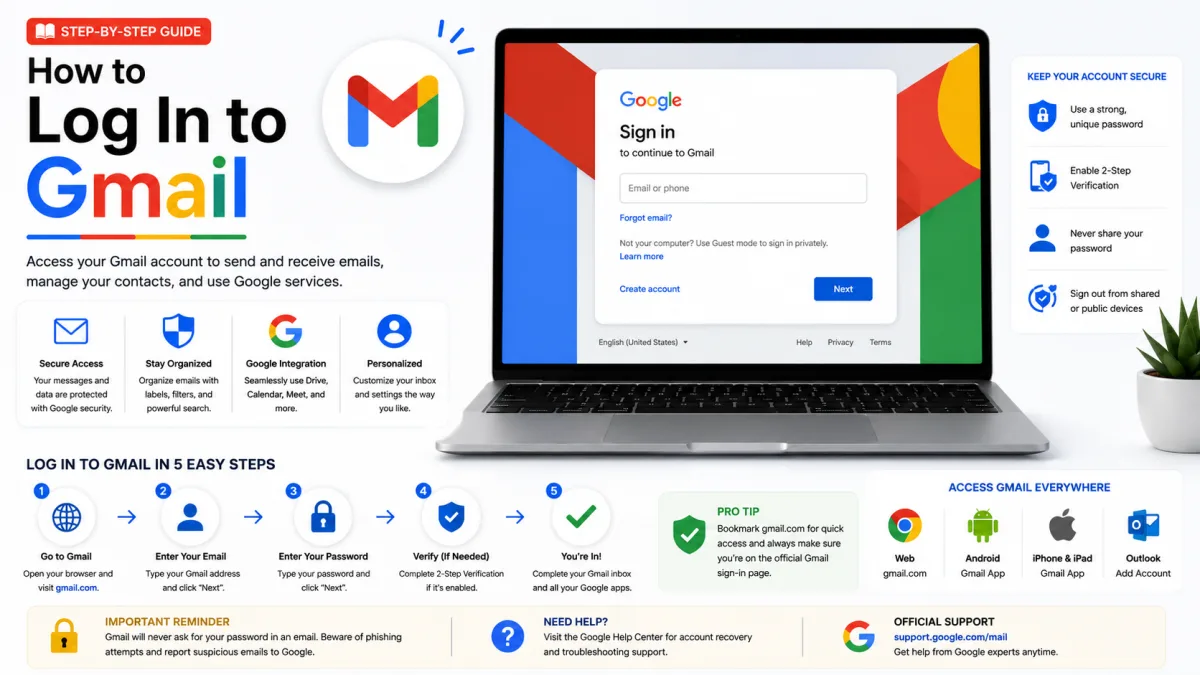
Signing in to Gmail used to be two steps: your address, then your password. In 2026 it often isn't — Google now prefers to ask your device to confirm it's you rather than asking you to remember something. This guide covers the ordinary flow, the passkey prompts, and the specific errors that stop people getting in.
Sign in to Gmail on a computer
Go to gmail.com. If you're already signed in to another Google service, you may land straight in your inbox.
Enter your full email address — including @gmail.com — and click Next.
Enter your password and click Next.
If Google asks for a second step, approve the prompt on your phone or enter the code it sends.
You can sign in with the phone number attached to your account instead of the address, which helps if you've forgotten which Gmail address you used.
When Google asks for a passkey instead of a password
Passkeys are now the default sign-in method for personal Google Accounts. Rather than typing a password, you unlock your device — fingerprint, face scan, or your phone's screen lock PIN — and the device proves who you are. Nothing secret crosses the internet, which is why passkeys can't be phished the way passwords can.
Worth knowing before you rely on one: a passkey replaces both steps. If your account uses 2-Step Verification, signing in with a passkey skips the second step entirely, because unlocking the device already proves you own it.
Signing in on the device that holds your passkey
Enter your address, then follow the prompt to unlock the device. That's the whole sign-in.
Signing in on a different computer, using your phone
Enter your username on the computer's sign-in page.
Click Try another way, then Use your passkey. A QR code appears on screen.
Scan that QR code with your phone's camera. Bluetooth needs to be switched on.
On your phone, tap Use passkey to sign in — on an iPhone or iPad it reads Sign in with a passkey.
Confirm with your fingerprint, face unlock or PIN.
The next time you use that same computer and phone together, you'll get a notification on your phone automatically instead of a QR code.
Using your password instead
Choose Try another way at the passkey prompt to go back to your other sign-in options. Your password still works — passkeys don't replace it.
To stop being asked every time, sign in to your Google Account, open Security & sign-in, and under "How you sign in to Google" turn off Skip password when possible.
If your passkey doesn't appear at sign-in
Check the device has a screen lock. Without one, the passkey on it cannot be used.
A brand-new passkey may need up to 7 days before it becomes available at sign-in.
Incognito and private windows often can't use passkeys at all, depending on your browser and operating system.
Work or school accounts may be blocked from passkey-only sign-in by an administrator.
On Android there's one more quirk: after signing out, your passkey keeps working on that device for about six hours. After that you'll need another method to get back in.
Sign in on Android
Open the Gmail app.
Tap your profile picture in the top-right corner, then Add another account.
Choose Google and sign in as above.
Android ties Gmail to the accounts saved on the phone itself, so an account added here shows up across other Google apps too.
Sign in on iPhone or iPad
Install the Gmail app from the App Store if you don't have it.
Open it, tap your profile picture, then Add another account.
Choose Google and complete sign-in.
You can also add Gmail to Apple's built-in Mail app via Settings → Mail → Accounts → Add Account → Google, which signs you in through Google's own page rather than storing your password in iOS.
Using more than one Gmail account
You don't have to sign out to switch. Click your profile picture in the top-right corner, then Add another account. Once two or more are signed in, that same menu switches between them, and each opens in its own tab.
Browsers sometimes get confused about which account a Google link belongs to and open the wrong inbox. If that keeps happening, use a separate browser profile per account rather than fighting it.
Signing in on a shared or public computer
Use a private or incognito window, and sign in with your password — passkeys generally don't work in private browsing anyway.
Never create a passkey on a computer that isn't yours. This is more serious than it sounds: once a passkey exists on a device, anyone who can unlock that device can get into your Google Account — and that remains true even after you sign out. If you're prompted to create one, decline.
Don't let the browser save your password either. When you're finished, click your profile picture and choose Sign out; closing the tab is not the same thing.
When sign-in doesn't work
"Wrong password. Try again."
Check Caps Lock, and check your keyboard layout is the one you normally use — a different layout silently changes what your keystrokes produce. If you're confident the password is right and it still fails, it may have been changed; go to Google's account recovery page and reset it.
"Couldn't find your Google Account"
The address you entered doesn't match an existing account. Nearly always that's a typo, or a different address than you remember. Try signing in with the phone number attached to the account instead.
If you're certain the address is right, the account may have been deleted. Recently deleted accounts can sometimes be restored through account recovery, but the window is limited — act now rather than later.
It asks for a verification code you can't get
That's 2-Step Verification, and it means your account is protected. On the code screen choose Try another way — Google usually offers several routes: a prompt on a signed-in phone, a backup code you saved during setup, an authenticator app, or a recovery phone or email.
If none are available, account recovery is the only path. Answer as many questions as you can rather than skipping them, and do it from a device and location you've used before — Google weighs familiarity heavily when deciding whether to trust the request.
"Couldn't sign you in — unusual activity"
Google blocks sign-ins that look unlike your normal pattern: a new country, a VPN, a brand-new device. Try again from a device you use regularly, on your usual network, with any VPN off. If you're genuinely travelling, signing in from a device the account already trusts is the quickest way through.
The page won't load, or keeps reloading
Clear cookies for google.com, or try a private window. A stale cookie from an earlier session is a common cause of a sign-in page that loops without ever failing outright. Privacy and ad-blocking extensions can also break the flow — try with them disabled.
Staying signed in safely
On your own devices, staying signed in is reasonable. Two habits make it considerably safer: turn on 2-Step Verification if you haven't, and occasionally review Your devices in your Google Account security settings. Anything you don't recognise can be signed out remotely from there — which is also the first thing to do if you ever suspect someone else has your password.
Checked against the source
Official sources
Enquiries
Frequently asked questions
Why is Gmail asking for a passkey instead of my password?
Passkeys became the default sign-in for personal Google Accounts. Your password still works — choose "Try another way" at the prompt.
Can I still use my password to sign in to Gmail?
Yes. Turn off "Skip password when possible" under Security & sign-in to stop being asked.
Why doesn't my new passkey work?
A newly created passkey can take up to 7 days to become available at sign-in.
Next delivery
Keep reading
Gmail Sign Up
How to Create a Gmail Account
Create a Gmail address step by step — how to find a username that isn't taken, what to do when Google asks for a phone number, and the shortcuts worth avoiding.
6 min read
Gmail Troubleshooting
Gmail Not Working? Common Fixes
Why Gmail stops receiving mail, refuses to send, or loses messages you know arrived — and how to find the cause rather than guessing at it.
6 min read
Gmail Security
Gmail Security: 2-Step Verification and App Passwords
Turn on 2-Step Verification, generate an app password for mail clients that cannot use OAuth, and understand why your ordinary Gmail password stopped working.
6 min read
Gmail Password Reset
How to Reset Your Gmail Password
Reset a forgotten Gmail password, and get through Google's account recovery when you have no recovery phone or email — including what actually improves your chances of passing.
6 min read
Gmail IMAP
Gmail IMAP Settings
Gmail’s IMAP server, port and encryption settings—plus secure sign-in options and fixes for duplicate messages caused by the All Mail folder.
3 min read
Gmail SMTP
Gmail SMTP Settings
Gmail's outgoing mail server, port and encryption for any client or device — plus sending limits, and how to send from another address through Gmail.
5 min read