Outlook.com Security: 2FA and App Passwords
Turn on two-step verification for your Microsoft account, understand why your mail client stopped working, and why the app password screen may no longer help.
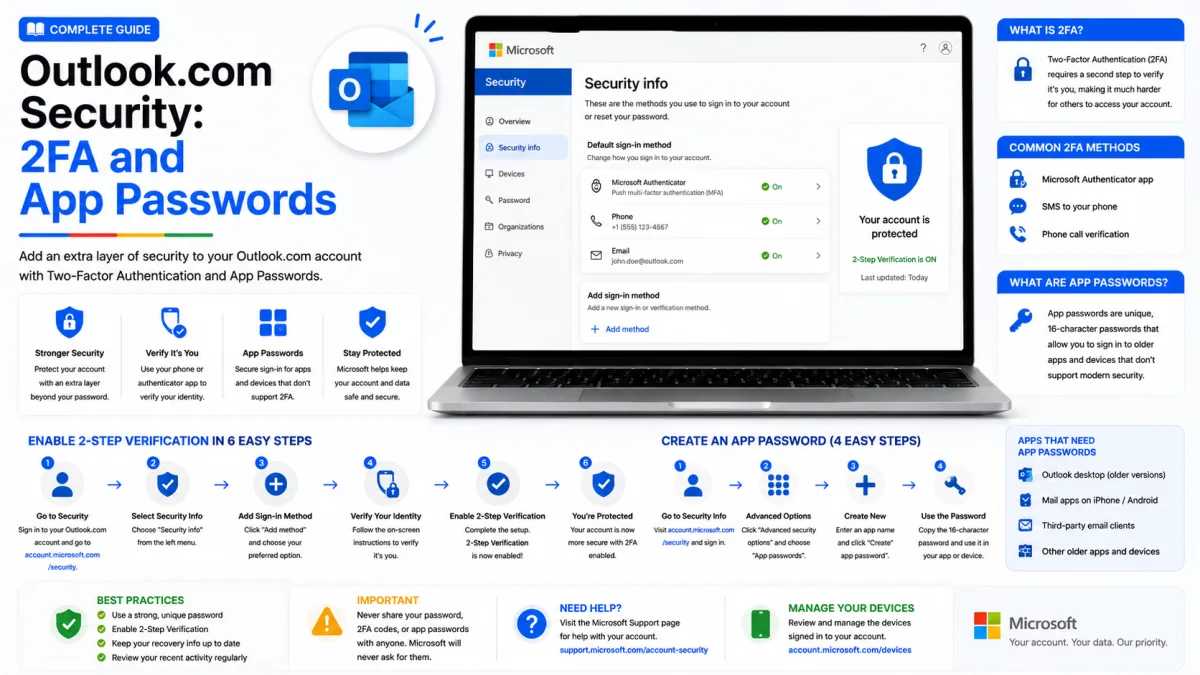
Two things happen to Microsoft accounts that confuse people. The first is two-step verification, which is straightforward and worth turning on. The second is that mail clients which worked for years suddenly stop, and the obvious fix — an app password — may no longer be a fix at all. Both are covered below.
Turn on two-step verification
Two-step verification means your password alone is not enough. Signing in from a new device or place also needs a code, so someone who learns your password still cannot get in.
Sign in to your Microsoft account and open the security section.
Find Advanced security options.
Select Turn on under two-step verification.
Follow the prompts to add your verification methods.
Add two contact methods, not one
This matters more than it appears, and Microsoft is explicit about it. With two-step verification switched on, resetting a forgotten password requires two ways of contacting you. Microsoft recommends two different email addresses — the one you use plus a backup — along with a phone number or an authenticator app.
The consequence of ignoring this is stark: lose your only contact method and your password alone will not get you back in. Microsoft's documentation says regaining access can take 30 days, and in some situations it is not possible at all.
Set up more than you think you need. It costs two minutes now and is the difference between an inconvenience and losing the account.
Choosing your methods
Microsoft Authenticator — codes or an approval tap. Works offline. A good default.
A passkey — the strongest option, since it cannot be phished. Microsoft is steering everyone toward these.
A backup email address — essential as a second method, not sufficient as the only one.
Text messages — better than nothing, but the weakest. Numbers can be taken over, and codes intercepted.
Generate a recovery code
While you are in security settings, generate a recovery code and store it somewhere away from your phone. It is a single code that gets you in when every other method has failed — the safety net beneath the safety net.
Why your mail client stopped working
If Outlook, Thunderbird, Apple Mail or your phone's built-in mail app suddenly refuses your Outlook.com password, or asks for it repeatedly and never accepts it, this is why.
Microsoft retired basic authentication for Outlook.com — the arrangement where an application connects using just a username and password. Modern clients instead sign in through Microsoft itself, which issues a limited token and never handles your password. Applications that cannot do that are refused.
The signature of this problem is 535 5.7.139, or a password prompt that reappears no matter how carefully you type. Repeated prompts are worth treating as a warning rather than a nuisance: they usually mean the app is asking in a way Microsoft no longer accepts.
What actually fixes it
Use a client that signs in through Microsoft. The test is simple: when you add the account, a compatible client sends you to a Microsoft sign-in page in a browser window. One that just asks for your password in its own dialogue is using the old method and will fail.
Current versions of Outlook, Apple Mail, Thunderbird and the major phone apps all support this. If yours does not, the answer is to update it, or move to one that does.
What happened to app passwords
Here is where Microsoft has left things genuinely unclear, and it is worth explaining rather than glossing over.
An app password is a generated code that lets an application connect without your real password. They still appear in Microsoft account security settings, and nothing on those screens says they no longer work for Outlook.com mail.
But an app password is itself a form of basic authentication — the very thing Microsoft retired for Outlook.com. The widely reported consequence is that app passwords no longer authenticate Outlook.com IMAP or SMTP, even though the option to create one remains visible.
This has cost people a great deal of time. You find your mail client failing, discover app passwords, generate one, and it fails too — with no explanation anywhere, because the interface still presents the feature as though it works.
To be straight about the uncertainty: Microsoft's own support forums are not consistent on this. Some replies still describe app passwords as the supported route for devices that cannot use modern sign-in. Others state plainly that app password sign-in was basic authentication and is gone. If you have a device that genuinely cannot sign in through Microsoft — an older printer or scanner, say — it is worth trying an app password, but do not be surprised when it fails, and do not spend hours assuming you have done something wrong.
The reliable answer is a client that supports modern sign-in. Everything else is working around a door that is being closed.
If a device genuinely cannot be updated
Printers, scanners and network storage that send notification mail are the usual casualties. If such a device cannot sign in through Microsoft and app passwords do not work for it, the practical options are:
Use a different mail provider for that device, keeping Outlook.com for your own mail.
Use a dedicated sending service built for machines rather than people.
Replace the device if its firmware will never be updated.
None of these is satisfying. But a device that only speaks a retired protocol has a shelf life, and recognising that early beats troubleshooting something that cannot be fixed.
Review your account security
Worth doing occasionally, and immediately if anything feels wrong. In your Microsoft account security settings you can see recent sign-in activity, the devices connected to your account, and every method currently able to verify you.
Recent activity — check for sign-ins from places or devices you do not recognise.
Ways to prove who you are — remove old phone numbers and addresses you no longer control, but never leave yourself with fewer than two.
Devices — remove anything you no longer own.
One caution: if you remove verification methods after recovering the account, a security hold of around 30 days may apply before changes take effect. That is deliberate, and it cannot be shortened.
A note on passkeys
Microsoft is pushing passkeys hard, and the prompts can be irritating. But the technology is genuinely better: a passkey cannot be phished, guessed or reused, because there is no secret to steal.
If you do adopt one, keep at least one other verification method on the account. A passkey tied to a single device becomes a problem the moment that device is lost — which is the same lesson as everything else on this page. Two ways in, always.
Enquiries
Frequently asked questions
Do Outlook.com app passwords still work?
For mail clients, probably not. App passwords rely on basic authentication, which Microsoft retired for Outlook.com. The screen still exists in account settings, which causes considerable confusion.
What does error 535 5.7.139 mean?
Authentication was rejected, almost always because the client is using basic authentication. The fix is a client that signs in through Microsoft, not a different password.
Why does Outlook keep asking for my password over and over?
Repeated prompts usually mean the app is using basic authentication and being refused. Treat it as a warning that the client needs updating or replacing.
Do I need two contact methods for two-step verification?
Yes. Microsoft states that with two-step verification on, you need two ways to be contacted to reset a password — and losing your contact method can mean a 30-day wait to regain access.
Next delivery
Keep reading
Outlook.com Troubleshooting
Outlook.com Not Working? Common Fixes
Why Outlook stops receiving mail, refuses to send, or hides messages you know arrived — including the storage rule that bounces mail back to senders permanently.
6 min read
Outlook.com Password Reset
How to Reset Your Outlook.com Password
Reset a forgotten Outlook, Hotmail or Live password — the standard route, the Sign-in Helper, the recovery form, and the one situation Microsoft says it cannot fix.
6 min read
Outlook.com Sign Up
How to Create a Outlook.com Account
Create a free Outlook.com address, and set up aliases so one account can hold several email addresses sharing a single inbox — plus the deletion trap to avoid.
6 min read
Outlook.com Login
How to Log In to Outlook.com
Sign in to Outlook, Hotmail or Live — including how to get past a passkey prompt when you do not have one, and what to do when the password option disappears.
6 min read
Outlook.com IMAP
Outlook.com IMAP Settings
Outlook.com's incoming server, port and encryption for any mail client — why the hostname looks wrong but isn't, and what happens to Focused Inbox.
5 min read
Outlook.com SMTP
Outlook.com SMTP Settings
The outgoing mail server settings for Outlook.com, Hotmail and Live — and why your password may be refused no matter how carefully you type it.
4 min read