How to Log In to Outlook.com
Sign in to Outlook, Hotmail or Live — including how to get past a passkey prompt when you do not have one, and what to do when the password option disappears.
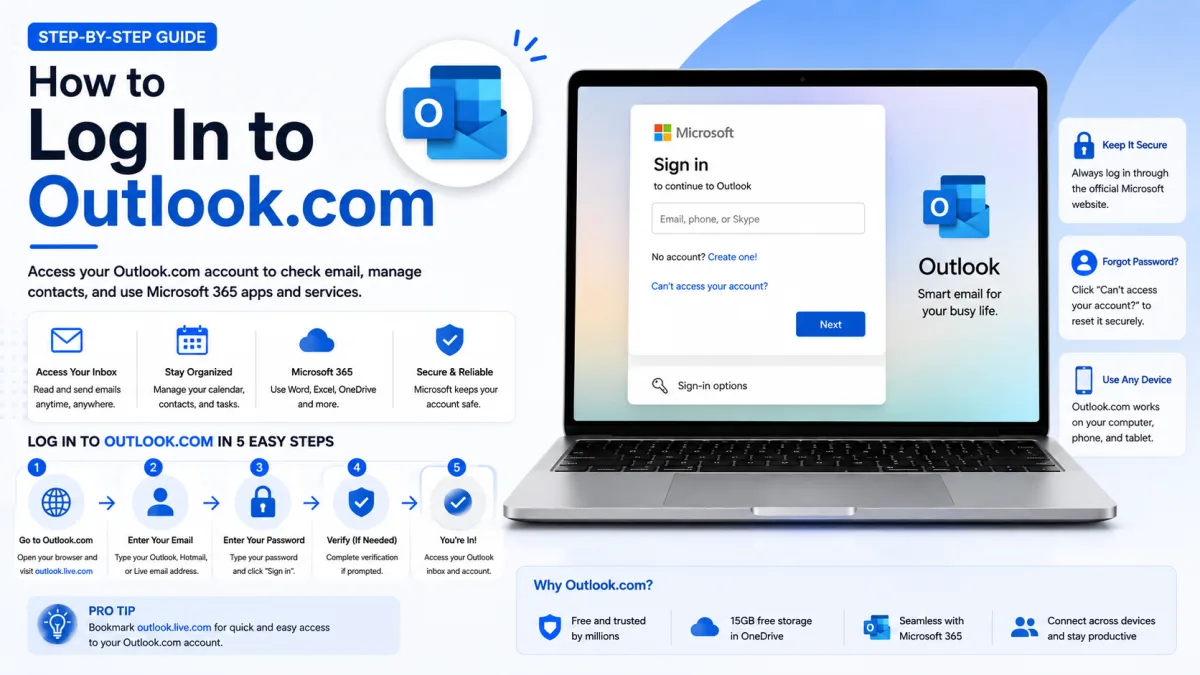
Signing in to Outlook.com is usually your email address and password. Increasingly it is not — Microsoft has been steering people toward passkeys, and a lot of visitors arrive at this page because their account suddenly wants something they do not have. That is the first thing covered below, because it is the thing most people are actually here for.
One point before starting: Outlook.com, Hotmail, Live and MSN are all the same service. If your address ends in any of those, everything here applies to you.
Signing in on a computer
Go to outlook.com and select Sign in.
Enter your full email address and choose Next.
Enter your password and choose Sign in.
Approve any additional verification if asked.
You may then be offered the chance to create a passkey, or to stay signed in. Both are optional. The next section explains what to do if the passkey prompt will not take no for an answer.
It is asking for a passkey and I do not have one
This is the most common Outlook sign-in problem right now, and it is not a fault. Microsoft introduced a passwordless-preferred sign-in flow in May 2025, which encourages passkey enrolment after you sign in successfully. On a personal account, passkeys remain optional — your password still works.
The way out
At the prompt, look for Other ways to sign in — some pages word it as Sign-in options — and choose Password. That returns you to the ordinary flow.
If you are shown a screen offering to create a passkey or set up a security key, you can select Cancel and continue. Declining does not lock anything.
When there is no password option at all
Occasionally the page offers only a passkey with no visible way back. That usually means one of two things.
A passkey is already registered on the account. Perhaps saved by a password manager, or created on another device and forgotten. The sign-in page then defaults to it. Sign in by another method — a code by text, or an authenticator app — then open your Microsoft account security settings, find Ways to prove who you are, and remove the passkey entry you do not use.
Before removing anything, make sure you still have at least one other sign-in method listed. Removing your only method leaves you locked out.
The account was made passwordless. If passwordless sign-in was switched on at some point, the password may genuinely no longer be usable. In that case sign in with an approved alternative — the Microsoft Authenticator app, an approval in Outlook for Android, a code by text, or a security key — and then turn password sign-in back on from your account settings if you want it.
If the prompt is simply stuck
Try an InPrivate or Incognito window, or a different browser entirely. A stale cookie can hold the sign-in page in a state it will not leave, and a clean session often resolves it in seconds. Clearing cookies for microsoft.com and live.com has the same effect.
Passkey, passcode, security code — which is which?
These get confused constantly, and the confusion is understandable because the names are so similar.
Passkey — stored on your device and unlocked with your fingerprint, face or device PIN. There is nothing to type and nothing to read out. If a page asks for a passkey, it is asking your device to confirm, not asking you to enter a number.
Passcode or security code — a 6-digit number, either texted to you, emailed, or generated by an authenticator app. This one you type in.
Password — the thing you chose and can remember.
If you are being asked for a "6-digit passkey", it is a security code, and it comes from your authenticator app or from a text message. There is no such thing as a passkey you can read and type.
Signing in on Android or iPhone
Install the Outlook app from Google Play or the App Store.
Open it and enter your email address.
Sign in with your password, or approve the request on another device.
To add a second account later, open the app's account menu and choose Add account. The Outlook app handles several mailboxes at once, including accounts from other providers.
Using more than one Microsoft account
In a browser, signing in to a second account normally signs you out of the first, which is a common frustration. Two workarounds: use separate browser profiles for each account, or keep one in a regular window and the other in a private window. The mobile app handles multiple accounts properly without any of this.
When sign-in fails
"That Microsoft account doesn't exist"
The address does not match an account. Check for a typo, and remember that old addresses ending @hotmail.com, @live.com or @msn.com are still valid — you do not convert them to @outlook.com.
Your password is refused
Check Caps Lock and your keyboard layout. If you are confident it is correct, the password may have been changed, or the account may have been switched to passwordless — see above. Otherwise, reset it through Microsoft's account recovery.
It asks for a code you cannot receive
If the code goes to a phone number or address you no longer have, look for an option to verify a different way. Failing that, account recovery is the route.
This is also the moment to generate a recovery code once you are back in. It is a single code, stored in your account security settings, that gets you in when every other method fails. Save it somewhere away from your phone — it is the difference between an inconvenience and a lost account.
"We noticed unusual activity"
Microsoft blocks sign-ins that look out of character — a new country, a VPN, an unfamiliar device. Retry from a device and network you normally use, with any VPN switched off.
A warning about fake Microsoft support
People locked out of email are a favourite target for tech support scams. If a page about signing in shows a phone number to call, warns that your computer is infected, or opens a browser tab that will not close, it is not Microsoft.
Microsoft does not put a support phone number on a sign-in error page, and no legitimate support process will ask you to read out a security code. If someone asks for a code, that is the point to stop.
Staying signed in safely
On your own devices, staying signed in is reasonable. Two things make it safer: make sure you have at least two ways to prove who you are — an authenticator app plus a phone number, say — and generate a recovery code before you need one.
And if the passkey prompts do not bother you, consider accepting one. A passkey cannot be phished, cannot be guessed, and does not need to be remembered. Microsoft is pushing them for a genuinely good reason; the annoyance is the timing of the prompt, not the technology.
Enquiries
Frequently asked questions
Why is Outlook asking for a passkey instead of my password?
Microsoft moved to a passwordless-preferred sign-in flow in May 2025. On a personal account, passkeys remain optional: choose "Other ways to sign in", then "Password".
What is the difference between a passkey and a passcode?
A passkey is stored on your device and unlocked with your fingerprint, face or PIN; there is nothing to type. A passcode or security code is a 6-digit number sent to you or produced by an authenticator app.
Are Hotmail and Outlook.com the same?
Yes. Hotmail was rebranded to Outlook.com; @hotmail.com, @live.com and @msn.com addresses all sign in the same way.
Outlook only offers a passkey and no password option. What now?
A passkey is registered on your account and the page is defaulting to it. Sign in another way, then remove the passkey under "Ways to prove who you are" in your Microsoft account security settings.
Next delivery
Keep reading
Outlook.com Troubleshooting
Outlook.com Not Working? Common Fixes
Why Outlook stops receiving mail, refuses to send, or hides messages you know arrived — including the storage rule that bounces mail back to senders permanently.
6 min read
Outlook.com Security
Outlook.com Security: 2FA and App Passwords
Turn on two-step verification for your Microsoft account, understand why your mail client stopped working, and why the app password screen may no longer help.
6 min read
Outlook.com Password Reset
How to Reset Your Outlook.com Password
Reset a forgotten Outlook, Hotmail or Live password — the standard route, the Sign-in Helper, the recovery form, and the one situation Microsoft says it cannot fix.
6 min read
Outlook.com Sign Up
How to Create a Outlook.com Account
Create a free Outlook.com address, and set up aliases so one account can hold several email addresses sharing a single inbox — plus the deletion trap to avoid.
6 min read
Outlook.com IMAP
Outlook.com IMAP Settings
Outlook.com's incoming server, port and encryption for any mail client — why the hostname looks wrong but isn't, and what happens to Focused Inbox.
5 min read
Outlook.com SMTP
Outlook.com SMTP Settings
The outgoing mail server settings for Outlook.com, Hotmail and Live — and why your password may be refused no matter how carefully you type it.
4 min read