GMX Security: 2FA and App Passwords
Turn on GMX two-factor authentication, create application-specific passwords for mail programs, and understand why one password may not be enough.
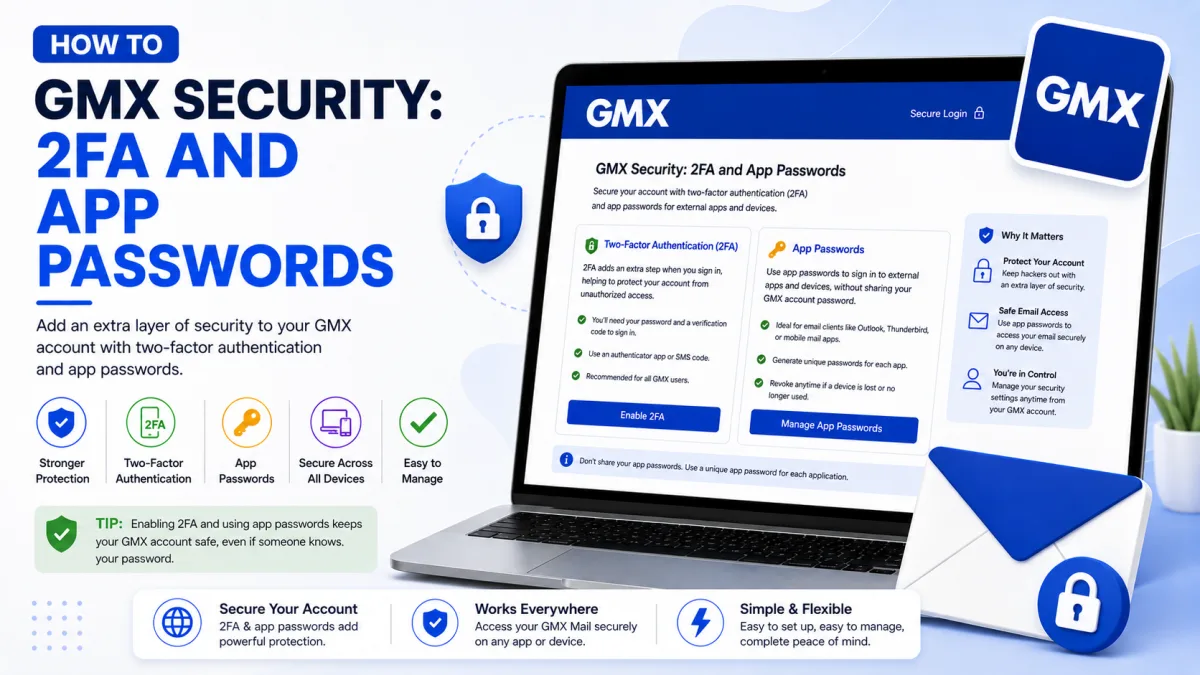
GMX handles two-factor authentication differently depending on how you are connecting, and that difference is the source of most confusion. The website, the GMX app and an external mail program each need something different — and one of them needs more than people expect.
Turning on two-factor authentication
Two-factor authentication means your password alone is not enough. Even if someone learns it, they cannot reach your mailbox without a code generated on your phone.
Sign in to GMX and open My Account.
Select Security Options in the navigation.
Click Enable two-factor authentication.
Follow the setup, scanning the QR code with your authentication app.
It is free. You will need an authentication app on your smartphone — GMX publishes a list of free and paid options — and the latest version of the GMX Mail app if you use it.
Save the secret key
During setup GMX generates a secret key automatically. This is not a code from your app; it is a one-off key that lets you regain access in an emergency.
Store it somewhere separate from the phone that runs your authenticator. If you lose the phone and the key was only on it, you have lost both factors at once — and as our password reset guide explains, GMX's recovery process asks for that key. Without it, there is no documented self-service route back in.
What you need, where
This is the part worth understanding properly, because GMX behaves differently in each context.
In a browser on your computer
Your password plus a 6-digit code from your authentication app, every time you sign in. No app-specific password is involved.
In the GMX Mail app
Your password, then a 6-digit code entered once. Again, no app-specific password.
This trips people up: having read about app passwords, they generate one and try to use it in the GMX app, where it does not belong. If the app is asking for a six-digit code, that is correct behaviour.
In an external mail program
Outlook, Thunderbird and similar cannot prompt you for a rotating code, so they use an application-specific password instead — entered once and stored by the program.
Creating an application-specific password
Sign in to GMX through the website.
Click the profile icon at the top right.
Click Security Options.
Click Manage application-specific passwords.
Click Create new application-specific password.
Enter a name for it and click Continue.
The password is shown only once. GMX's own instruction is to write it down immediately. There is no way to view it again — if you lose it, you delete the entry and create another.
Use it in place of your GMX password in the external program. Your real password continues to work for the website and the GMX app.
These also cover calendar and address book synchronisation through CalDAV and CardDAV, if you connect those to an external program.
Application-specific passwords are per external application
GMX documents creating an application-specific password for an external program or application. It does not document separate passwords for IMAP and SMTP. Use the generated password wherever that program asks for the account password. If another program or device needs access, create and label another application-specific password so it can be managed separately.
Before you enable 2FA
Two things to have in place first, because both become harder afterwards:
A contact email address and mobile number saved in your GMX settings. These are what make self-service password recovery possible at all.
Somewhere to store the secret key that is not the phone running your authenticator.
And be aware that any mail program you already use will stop working the moment 2FA is enabled, until you replace its stored password with an application-specific one. That is expected rather than a fault — but it is better to know before every device fails at once.
If a mail program keeps asking for the password
A program that authenticates once and then demands the password again on the next start usually means one of these:
The wrong password type. Your GMX password will not work in an external program once 2FA is on.
One password across several protocols, per the section above.
The program is not storing it. Some clients fail to save an app password properly; deleting the account from the program and adding it again, entering the password fresh, often resolves it.
POP3 and IMAP are still switched off. GMX disables external access by default, and no password of any kind works until it is enabled. Our server settings guide covers this.
Everyday security
Use a password you do not use anywhere else. GMX asks for this at registration for good reason — reused passwords are how most accounts are lost.
Delete app passwords for devices you no longer own. Each one is a working key to your mailbox.
Never read a code aloud to anyone. No legitimate support process needs it, and anyone asking is asking for your account.
Checked against the source
Official sources
- GMX — Two-factor authentication overview ↗
- GMX Help Center — How do I set up application-specific passwords? ↗
- GMX Help Center — About two-factor authentication ↗
- GMX Help Center — What is an authentication app and why do I need it? ↗
- GMX Help Center — Lost login credentials for two-factor authentication ↗
Enquiries
Frequently asked questions
Why does my GMX app password work for receiving but not sending?
GMX does not document separate application-specific passwords for incoming and outgoing mail. Check that outgoing-server authentication is enabled and that the application-specific password is also saved in the SMTP settings.
Do I need an app password for the GMX Mail app?
No. GMX states no app-specific password is needed for the PC browser or the GMX Mail App — you use a 6-digit code instead.
Where do I create a GMX application-specific password?
Profile icon → Security Options → Manage application-specific passwords → Create new application-specific password.
What is the GMX secret key for?
It is generated automatically during 2FA setup and is how you regain access in an emergency. Store it away from your phone.
Next delivery
Keep reading
GMX Troubleshooting
GMX Not Working? Common Fixes
Why GMX stops receiving mail, refuses to send, or keeps misfiling the same sender — including the rule ordering that makes marking spam do nothing.
7 min read
GMX Password Reset
How to Reset Your GMX Password
Reset a forgotten GMX password — check your browser first, understand why the recovery options may not appear, and what two-factor authentication requires.
5 min read
GMX Sign Up
How to Create a GMX Account
Create a free GMX address step by step — and what to do about the country restriction, the IP block, and the VPN mistake that gets new accounts suspended.
5 min read
GMX Login
How to Log In to GMX
Sign in to GMX on any device, tell gmx.com and gmx.net apart, and work out what is wrong when a mail app fails but the website works.
6 min read
GMX IMAP
GMX IMAP Settings
GMX's incoming server, port and encryption — plus the switch you must enable first, and why GMX may turn it off again on its own.
6 min read
GMX SMTP
GMX SMTP Settings
GMX's outgoing mail server, ports and encryption — plus why an older program can receive mail perfectly and fail to send a single message.
5 min read