Outlook.com Server Settings: IMAP, SMTP and POP3
Every Outlook.com, Hotmail and Live server setting in one place — plus why the settings alone may not connect you, and how business accounts differ.
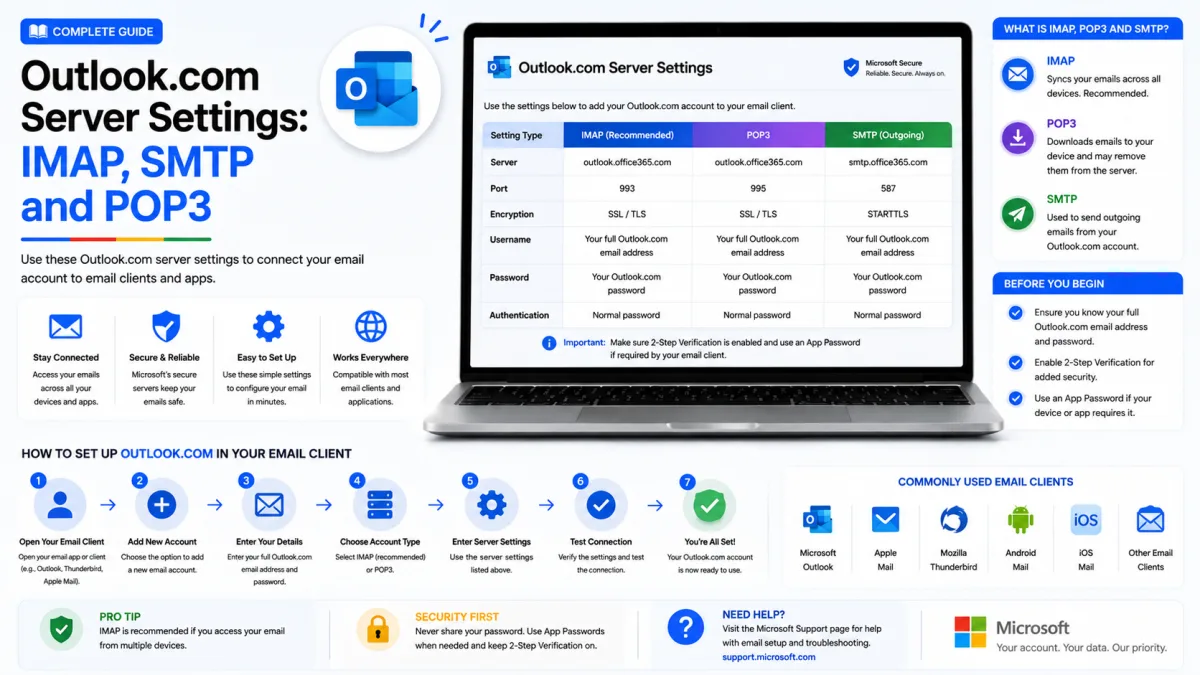
Server settings
Outlook.com
- IMAP incoming SSL/TLS
- SMTP outgoing STARTTLS
- POP3 download SSL/TLS
outlook.office365.com
port 993
smtp-mail.outlook.com
port 587
outlook.office365.com
port 995
- Covers
- outlook.com, hotmail.com, live.com, msn.com addresses
- Authentication
- Microsoft is moving clients to OAuth; older apps using basic auth may be refused
- Work accounts
- Microsoft 365 business mail uses smtp.office365.com
Everything needed to connect Outlook.com to a mail client, in one place. These settings cover @outlook.com, @hotmail.com, @live.com and @msn.com addresses — one service, one set of values.
One caution before the table: on Outlook.com the settings are necessary but frequently not sufficient. How your client signs in matters as much as what you type into it, and that is covered directly below.
Outlook.com server settings
Protocol | Server | Port | Encryption |
|---|---|---|---|
IMAP (incoming) |
| 993 | SSL/TLS |
SMTP (outgoing) |
| 587 | STARTTLS |
POP3 (incoming) |
| 995 | SSL/TLS |
Your username is your full email address. Authentication is required on the outgoing server as well as the incoming one — if your client has a separate checkbox for that, tick it.
The incoming hostname looks like a business address, and people frequently assume they have the wrong settings because of it. They have not. Personal Outlook.com mailboxes run on the same infrastructure, and outlook.office365.com is correct for a consumer account.
Your password may not be the problem
This is the most common reason a correctly configured Outlook.com account still will not connect.
Microsoft retired basic authentication for Outlook.com — the arrangement where an application connects with just a username and password. Clients must now sign in through Microsoft itself, which issues a limited token and never handles your password directly. Anything that cannot do that is refused, regardless of how correct your settings are.
The signs are distinctive: the error 535 5.7.139, or a password prompt that reappears endlessly, or a setup that worked for years and stopped without you changing anything.
The test is simple. When you add the account, a compatible client opens a Microsoft sign-in page in a browser window. One that asks for your password in its own dialogue box is using the retired method.
Current versions of Outlook, Apple Mail, Thunderbird and the major phone apps all handle this correctly. If yours does not, update it or move to one that does. Our security guide covers this in more depth, including the confusing state of app passwords.
Work and school accounts are a different service
If your address was issued by an employer, school or university, you are probably on Microsoft 365 rather than consumer Outlook.com. The two are separate services, and using one's settings on the other produces authentication failures that look exactly like wrong credentials.
Microsoft 365 accounts use outlook.office365.com for incoming mail and smtp.office365.com for outgoing. Your administrator may also have restricted or disabled protocol access entirely, in which case no settings will work and the answer is to ask them rather than to keep trying.
If you are unsure which you have: an address ending @outlook.com, @hotmail.com, @live.com or @msn.com is consumer. Anything on a company or school domain is almost certainly not.
IMAP or POP3?
Choose IMAP unless you have a specific reason not to.
IMAP synchronises. Your mail stays on the server and every device sees the same mailbox — read something on your phone and it shows as read on your laptop, move it to a folder and it moves everywhere.
POP3 downloads and, by default, removes the server copy. That suits one narrow case — archiving mail permanently onto a single machine — and causes lasting confusion on any account used from more than one device, because mail collected by one device simply is not there for the others.
If you do use POP, check whether it needs enabling in Outlook.com's settings first, and set the "leave a copy on the server" option deliberately rather than accepting whatever your client defaults to.
Matching ports to encryption
Ports and encryption travel in pairs, and mixing them is the most common reason a correct-looking configuration refuses to connect. Port 993 expects SSL/TLS. Port 995 expects SSL/TLS. Port 587 expects STARTTLS for outgoing mail.
Take a port from one pairing and encryption from another, and the connection fails with an error that usually blames the network or your credentials — sending you looking in entirely the wrong place.
Never configure without encryption. An unencrypted connection exposes your credentials to anyone on the same network, and Microsoft refuses such connections anyway.
If it still will not connect
Check how your client signs in — a Microsoft page in a browser, not a password box in the app.
Check you are on the right service. Consumer settings on a business account, or the reverse, fail in a way that looks like a credentials problem.
Check the port and encryption pairing against the table above.
Check the username is your full address, including the domain.
Try a mobile hotspot if sending times out — many networks block outbound mail ports, and a message that sends on mobile data confirms the network rather than your settings.
If the client connects but mail is not arriving at all, that is a different problem. Our troubleshooting guide covers storage, Focused Inbox, rules and blocked senders — which between them explain most missing mail, and one of which permanently bounces messages back to senders.
Enquiries
Frequently asked questions
What are the Outlook.com IMAP settings?
outlook.office365.com on port 993 with SSL/TLS, and smtp-mail.outlook.com on port 587 with STARTTLS for outgoing.
Are Hotmail server settings different from Outlook.com?
No. Hotmail, Live, MSN and Outlook.com are the same service and use identical settings.
Why is my incoming server outlook.office365.com when I have a personal account?
Personal Outlook.com mailboxes run on the same infrastructure. The hostname looks like a business one, but it is correct for consumer accounts.
Why won't my password work even with the right settings?
Microsoft retired basic authentication for Outlook.com. A client that asks for your password in its own dialogue will be refused; it must sign in through Microsoft.
Next delivery
Keep reading
Outlook.com Troubleshooting
Outlook.com Not Working? Common Fixes
Why Outlook stops receiving mail, refuses to send, or hides messages you know arrived — including the storage rule that bounces mail back to senders permanently.
6 min read
Outlook.com Security
Outlook.com Security: 2FA and App Passwords
Turn on two-step verification for your Microsoft account, understand why your mail client stopped working, and why the app password screen may no longer help.
6 min read
Outlook.com Password Reset
How to Reset Your Outlook.com Password
Reset a forgotten Outlook, Hotmail or Live password — the standard route, the Sign-in Helper, the recovery form, and the one situation Microsoft says it cannot fix.
6 min read
Outlook.com Sign Up
How to Create a Outlook.com Account
Create a free Outlook.com address, and set up aliases so one account can hold several email addresses sharing a single inbox — plus the deletion trap to avoid.
6 min read
Outlook.com Login
How to Log In to Outlook.com
Sign in to Outlook, Hotmail or Live — including how to get past a passkey prompt when you do not have one, and what to do when the password option disappears.
6 min read
Outlook.com IMAP
Outlook.com IMAP Settings
Outlook.com's incoming server, port and encryption for any mail client — why the hostname looks wrong but isn't, and what happens to Focused Inbox.
5 min read