How to Create a Outlook.com Account
Create a free Outlook.com address, and set up aliases so one account can hold several email addresses sharing a single inbox — plus the deletion trap to avoid.
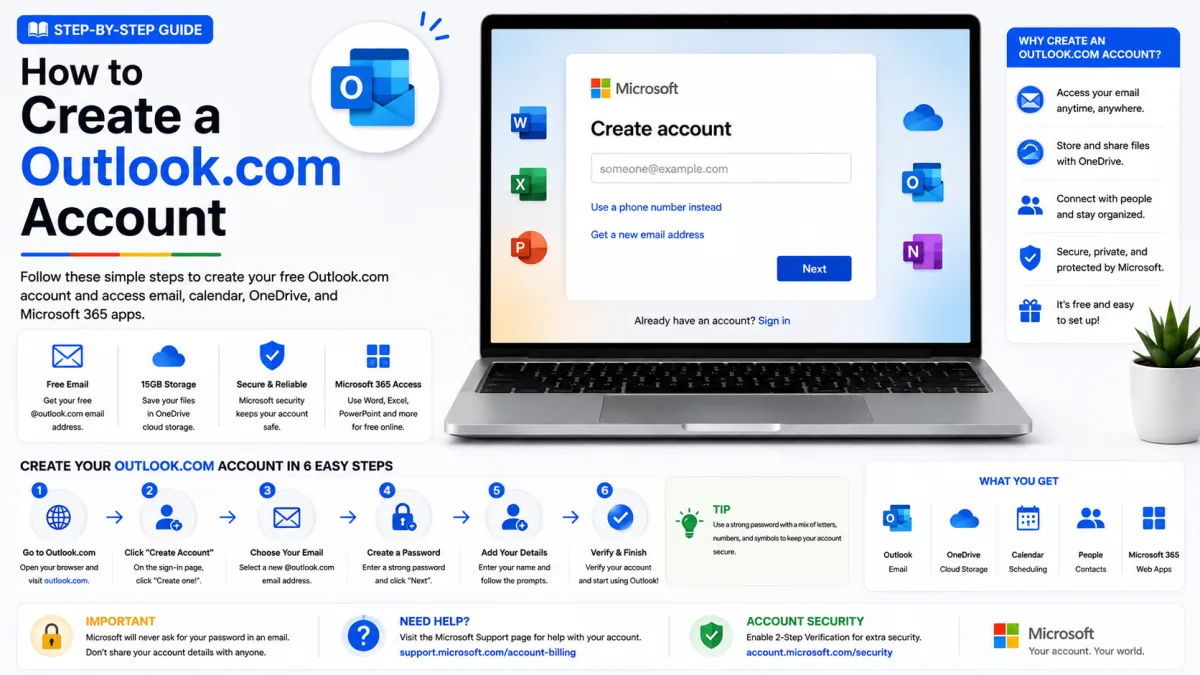
Creating an Outlook.com address takes a few minutes, and the account it creates is a Microsoft account — the same one used for Windows, Xbox, OneDrive and Office. Worth knowing before you start, because whatever you name it will follow you across all of them.
The part most guides skip is the genuinely useful bit: one Outlook account can hold several email addresses. That is covered below, along with a deletion trap worth understanding before you go anywhere near it.
Creating the account
Go to outlook.com and choose to create a free account.
Enter the address you want, and pick a domain from the dropdown.
Choose a password.
Enter your first and last name.
Enter your country or region and date of birth.
Complete the puzzle or verification Microsoft presents.
The verification step is usually a picture puzzle rather than a phone number, which is a meaningful difference from signing up for Gmail — Microsoft leans on the puzzle where Google leans on SMS.
Choosing your address
Take a moment over this. Your primary address is what appears on Microsoft devices and on everything you send, and while it can be changed later using aliases, the original address stays attached to the account permanently.
Letters, numbers, dots, underscores and hyphens only. Spaces and other characters are rejected.
Unlike Gmail, dots matter. Gmail treats
john.smithandjohnsmithas one address. Outlook does not — they are different addresses, and both can exist separately.Avoid birth years. They date the address and reveal your age to everyone you write to.
Think about the other services. This name will show up on your Xbox profile and in shared Office documents.
Aliases: several addresses, one inbox
This is Outlook's best feature and the one almost nobody mentions. An alias is an additional email address on the same account. It shares the same inbox, contacts, settings and password, and you can sign in with any alias on the account. You choose which address each message is sent from.
That makes some genuinely useful arrangements possible:
A private address for people, and a separate one for shops and newsletters — both landing in one inbox.
A neutral address for job applications alongside a personal one.
A dedicated address for a side project, without a second account to sign in and out of.
Gmail has nothing equivalent. Its plus-addressing trick — you+shop@gmail.com — is visibly derived from your real address, so it neither hides it nor lets you sign in with it.
Adding an alias
Sign in and open your Microsoft account settings.
Find Your info, then the section for managing how you sign in.
Choose Add email, then Create a new email address and add it as an alias.
Pick the new address and confirm.
You can also add an address you already own elsewhere — a Gmail address, or one on your own domain — as an alias for signing in. What you cannot add is an existing Hotmail, Live, Outlook.com or MSN address, or a work or school address. Those belong to their own accounts and cannot be moved.
Changing your main address
If you want a different primary address, create the new one as an alias and then make it primary. Your old address keeps working and keeps delivering to the same inbox — so nothing sent to it is lost while you tell people about the change.
The trap: deleting an alias is permanent
This is the part worth reading twice. If you remove an alias on a Microsoft domain — @outlook.com, @hotmail.com, @live.com or @msn.com — Microsoft's own documentation states that the address is permanently deleted and can never be associated with any Microsoft account again. Not by you, not by anyone, not ever.
Microsoft does not recycle its own addresses, reportedly so that nobody inherits mail meant for a previous owner. Sensible policy, but it means a tidy-up you regret cannot be undone.
So: if you no longer want an address, consider simply leaving it attached and unused rather than removing it. Aliases cost nothing to keep.
Addresses from other domains behave differently — remove a @gmail.com alias and it usually becomes available again straight away.
Hotmail addresses
Two things people ask constantly, both worth being clear about.
You cannot create a new @hotmail.com, @live.com or @msn.com alias. Microsoft's documentation is explicit. Those domains are closed to new aliases; @outlook.com is what you get.
Having @hotmail.com does not give you the matching @outlook.com. They are separate addresses. Mail sent to the @outlook.com version will simply bounce unless someone has created it. If you want both, add the second as an alias — assuming nobody else took it.
Set up recovery before you need it
Do this immediately, not after something goes wrong:
Add a second way to prove who you are — a phone number and a backup email, ideally both.
Generate a recovery code from your account security settings and store it away from your phone. It gets you in when everything else fails.
Consider a passkey. Microsoft is steering everyone toward them, and a passkey cannot be phished. If you keep declining the prompt, you will keep being asked.
Recovery is decided by what you set up in advance. Five minutes now saves a great deal later.
Free account or Microsoft 365?
The free account gives you the mailbox, OneDrive storage, and the web versions of Word, Excel and PowerPoint. That is enough for most people.
A Microsoft 365 subscription adds the desktop apps, considerably more storage, and removes the ads from the Outlook.com web interface. Worth it if you use Office seriously; unnecessary if you just want email.
After the account exists
Send yourself a test message and confirm it arrives.
Add the account to your phone using the Outlook app, which handles multiple mailboxes well.
Set up a mail client if you use one — note that Microsoft has been retiring older authentication methods, so a client that cannot sign in through Microsoft may be refused.
Consider your aliases now, while the account is new. It is much easier to keep shopping mail separate from day one than to untangle it later.
Enquiries
Frequently asked questions
Can I still get a @hotmail.com address?
You cannot create one as an alias; Microsoft states that is not possible. Whether the signup form still offers the domain for a brand-new account varies, so check the dropdown when you sign up.
What is an Outlook alias?
An extra email address on the same account. It shares the inbox, contacts, settings and password, and you can sign in with any alias on the account.
How many email addresses can one Outlook account have?
Several, added as aliases, all delivering to one inbox. You choose which one messages are sent from.
If I delete an Outlook address, can I get it back?
No. Microsoft permanently deletes addresses on its own domains and never reuses them, on any account, ever.
Are Hotmail and Outlook.com addresses the same thing?
They're the same service but different addresses. Having @hotmail.com does not give you the matching @outlook.com — that would be a separate address you'd have to create.
Next delivery
Keep reading
Outlook.com Troubleshooting
Outlook.com Not Working? Common Fixes
Why Outlook stops receiving mail, refuses to send, or hides messages you know arrived — including the storage rule that bounces mail back to senders permanently.
6 min read
Outlook.com Security
Outlook.com Security: 2FA and App Passwords
Turn on two-step verification for your Microsoft account, understand why your mail client stopped working, and why the app password screen may no longer help.
6 min read
Outlook.com Password Reset
How to Reset Your Outlook.com Password
Reset a forgotten Outlook, Hotmail or Live password — the standard route, the Sign-in Helper, the recovery form, and the one situation Microsoft says it cannot fix.
6 min read
Outlook.com Login
How to Log In to Outlook.com
Sign in to Outlook, Hotmail or Live — including how to get past a passkey prompt when you do not have one, and what to do when the password option disappears.
6 min read
Outlook.com IMAP
Outlook.com IMAP Settings
Outlook.com's incoming server, port and encryption for any mail client — why the hostname looks wrong but isn't, and what happens to Focused Inbox.
5 min read
Outlook.com SMTP
Outlook.com SMTP Settings
The outgoing mail server settings for Outlook.com, Hotmail and Live — and why your password may be refused no matter how carefully you type it.
4 min read