Yahoo Mail IMAP Settings
Use Yahoo Mail IMAP in Outlook, Apple Mail or Thunderbird with the correct server, port, encryption and supported authentication method.
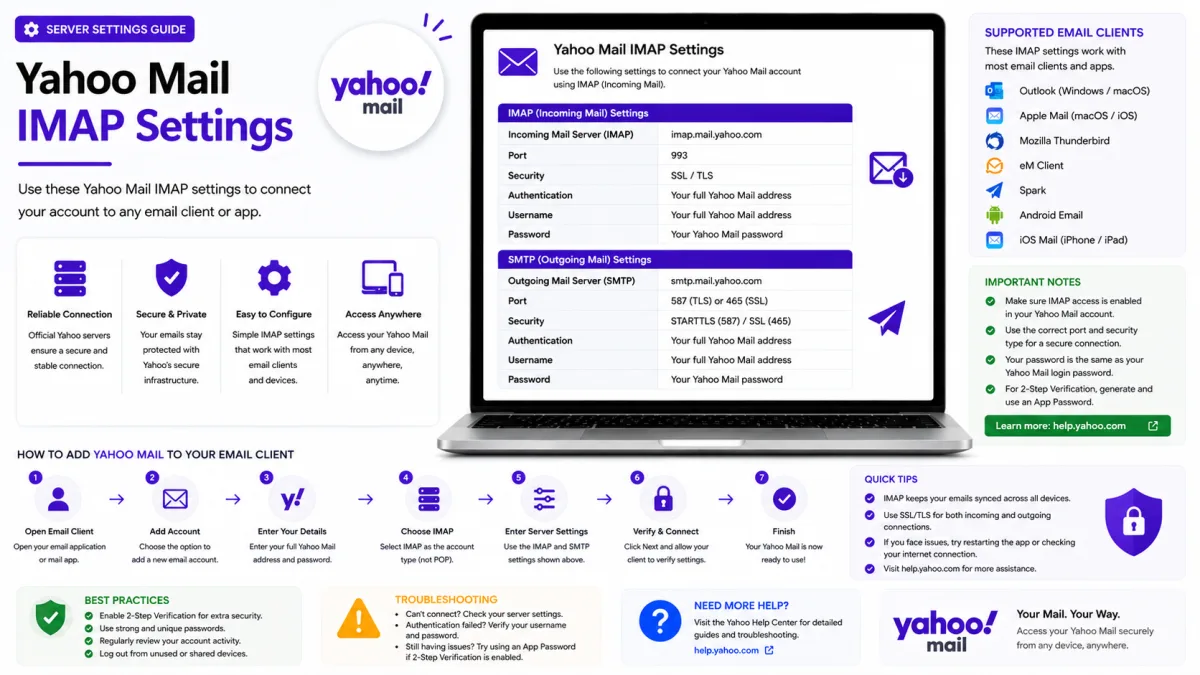
Server settings
Yahoo Mail
- IMAP incoming SSL/TLS
- SMTP outgoing SSL/TLS
- POP3 download SSL/TLS
imap.mail.yahoo.com
port 993
smtp.mail.yahoo.com
port 465
pop.mail.yahoo.com
port 995
- App password
- May be required for older or manually configured apps, Account Key and two-step verification
- Alt SMTP port
- 587 with STARTTLS
IMAP keeps your mail on Yahoo's servers and mirrors it to every device you connect. Read a message on your phone and it shows as read on your laptop; move it to a folder and the folder appears everywhere. That synchronisation is the point, and it is why IMAP is the right choice for almost everyone connecting Yahoo to a mail client.
Yahoo Mail IMAP settings
Setting | Value |
|---|---|
Server |
|
Port | 993 |
Encryption | SSL/TLS |
Username | Your complete Yahoo email address |
Authentication | Yahoo sign-in when available |
Password | An app password — not your Yahoo password |
These cover incoming mail only. You will also need outgoing settings before you can send — our SMTP settings guide has those, and the combined settings guide has everything on one page.
Which password should you use?
Use the built-in Yahoo account option or “Sign in with Yahoo” whenever your mail application offers it. The application should open Yahoo’s official sign-in page, where you can complete your password, Account Key, passkey or two-step verification process.
An app password may be required when:
Yahoo Account Key is enabled.
Two-step verification is enabled.
The application is older and cannot open Yahoo’s sign-in page.
You are configuring IMAP manually in an application that supports only basic username-and-password authentication.
If the application successfully opens Yahoo’s official sign-in page, complete that process instead of creating an app password unnecessarily.
Creating an app password
Sign in to Yahoo and open Account Security.
Find External connections.
Select Create app password.
Enter a name identifying the application or device.
Select Generate password.
Copy the generated code into the application’s password field.
The code is displayed once. If you lose it, delete that app-password entry and generate a new one.
Avoid copying spaces before or after the code. If the application rejects a copied app password, paste it again carefully or type it manually.
Adding the account
Most current mail applications include Yahoo as a supported account provider. Choose Yahoo or “Sign in with Yahoo” first and allow the application to open Yahoo’s official authentication page.
Use manual or advanced setup only when the Yahoo option is unavailable or automatic setup fails. For manual setup, enter the IMAP server, port and encryption values listed above and configure Yahoo SMTP separately for outgoing mail.
Before finishing, confirm that the application selected IMAP rather than POP3. IMAP keeps the mailbox synchronised across devices, while POP3 is designed primarily for downloading messages.
Outlook
Outlook
Open Outlook’s account settings and choose Add Account.
Enter your complete Yahoo email address.
Continue through Yahoo’s browser-based sign-in page if it opens.
Confirm that Outlook selects IMAP.
If manual settings are required, use
imap.mail.yahoo.comon port 993 with SSL/TLS.Confirm that the outgoing server requires authentication.
Older Outlook versions that cannot use Yahoo’s browser-based sign-in may require an app password. Do not assume one is necessary if Yahoo’s official sign-in process completes successfully.
Apple Mail and iPhone
Apple Mail and iPhone
Choose Yahoo rather than “Other” whenever the Yahoo account option is available.
On recent iOS versions:
Open Settings.
Select Apps.
Select Mail.
Open Mail Accounts.
Select Add Account.
Choose Yahoo.
Complete the Yahoo sign-in page.
On a Mac, open Mail → Add Account and select Yahoo.
This supported route normally handles the authentication and server settings automatically. Use “Other,” manual IMAP settings and an app password only when the Yahoo option is unavailable or cannot be completed.
Thunderbird
Enter your Yahoo email address and allow Thunderbird to detect the account. Confirm that it selects IMAP with imap.mail.yahoo.com, port 993 and SSL/TLS.
Use Yahoo’s browser-based authentication when Thunderbird offers it. If an older Thunderbird version supports only normal password authentication, update Thunderbird or generate an app password for that installation.
Before finishing, confirm that SMTP authentication is enabled so the account can send as well as receive messages.
After it connects
Folders sync normally
Unlike Gmail, Yahoo has genuine folders rather than labels, so a message lives in exactly one place and moving it in your client moves it everywhere. There is no All Mail folder duplicating your inbox, and deleting genuinely deletes.
Do check that your client maps Sent, Drafts, Trash and Spam to Yahoo's own folders. Wrong mapping produces sent messages appearing twice, or drafts that vanish when you switch device. Confirm it once at setup rather than wondering later.
Decide how much to keep locally
Most clients let you choose between synchronising everything and keeping only recent mail. Full sync gives offline access and fast local search at the cost of disk space; recent-only keeps a laptop light but needs a connection for older mail. Neither affects what is stored on Yahoo's servers, and it can be changed later.
Older mail may not appear straight away
A large mailbox takes time to synchronise, and some clients fetch only recent messages until told otherwise. If years of mail seem to be missing, check your client's synchronisation range before concluding anything has been lost.
If it will not connect
Work through these checks:
Choose Yahoo or “Sign in with Yahoo” if the application offers it.
If Account Key or two-step verification is enabled and the application uses manual authentication, try an app password.
Check for spaces accidentally copied with the app password.
Confirm the server is
imap.mail.yahoo.com.Confirm the port is 993 with SSL/TLS.
Enter your complete Yahoo email address as the username.
Update the mail application and operating system.
Check whether a firewall, security application or restricted network is blocking the connection.
Try another network if the connection times out.
Yahoo Mail does not normally require you to enable IMAP through a separate mailbox setting. Avoid changing unrelated Yahoo settings when the problem is more likely authentication, an incorrect port or an outdated application.
If the account connects but messages are missing, check Yahoo storage, filters, blocked senders and the application’s synchronisation range.
Official Yahoo sources
Enquiries
Frequently asked questions
What is the IMAP server for Yahoo Mail?
Yahoo Mail’s IMAP server is imap.mail.yahoo.com. Use port 993 with SSL/TLS, your complete Yahoo email address as the username and Yahoo’s supported sign-in process when available.
Why does Yahoo reject my password in Outlook?
First add the account using Outlook’s Yahoo or browser-based sign-in option. If you use Account Key, two-step verification or an older Outlook version that supports only manual authentication, generate an app password in Yahoo Account Security.
Do I need an app password for the Yahoo Mail app?
No. Yahoo’s own app uses Yahoo’s supported sign-in process. App passwords are intended for older or manually configured applications that cannot complete Yahoo’s authentication flow, particularly when Account Key or two-step verification is enabled.
Why do I have to set this up again after changing my password?
An application using your normal Yahoo password may ask you to sign in again after the password changes. However, Yahoo says existing app passwords remain active until you manually delete them. If you changed your password because of suspicious activity, review and revoke unknown app passwords separately.
Next delivery
Keep reading
Yahoo Mail Security
Yahoo Mail Security: 2FA and App Passwords
Secure Yahoo Mail with two-step verification, Account Key, security keys and app passwords for older or manually configured applications.
6 min read
Yahoo Mail Password Reset
How to Reset Your Yahoo Mail Password
Reset a forgotten Yahoo password with Sign-in Helper, understand recovery limitations, review app passwords and find the right route for provider-managed accounts.
5 min read
Yahoo Mail Troubleshooting
Yahoo Mail Not Working? Common Fixes
Fix Yahoo Mail problems involving missing messages, sending failures, storage, filters, Apple Mail, browser loading and device synchronisation.
7 min read
Yahoo Mail Login
How to Log In to Yahoo Mail
Sign in to Yahoo Mail on a computer, Android or iPhone, use Account Key and passkeys, and fix verification or mail-client authentication problems.
7 min read
Yahoo Mail Sign Up
How to Create a Yahoo Mail Account
Create a Yahoo Mail account, choose a permanent address, verify your mobile number, configure recovery and understand disposable addresses.
6 min read
Yahoo Mail SMTP
Yahoo Mail SMTP Settings
Use Yahoo Mail SMTP with the correct server, ports, encryption and authentication, and fix sending problems in clients, printers and scripts.
6 min read