How to Log In to Yahoo Mail
Sign in to Yahoo Mail on a computer, Android or iPhone, use Account Key and passkeys, and fix verification or mail-client authentication problems.
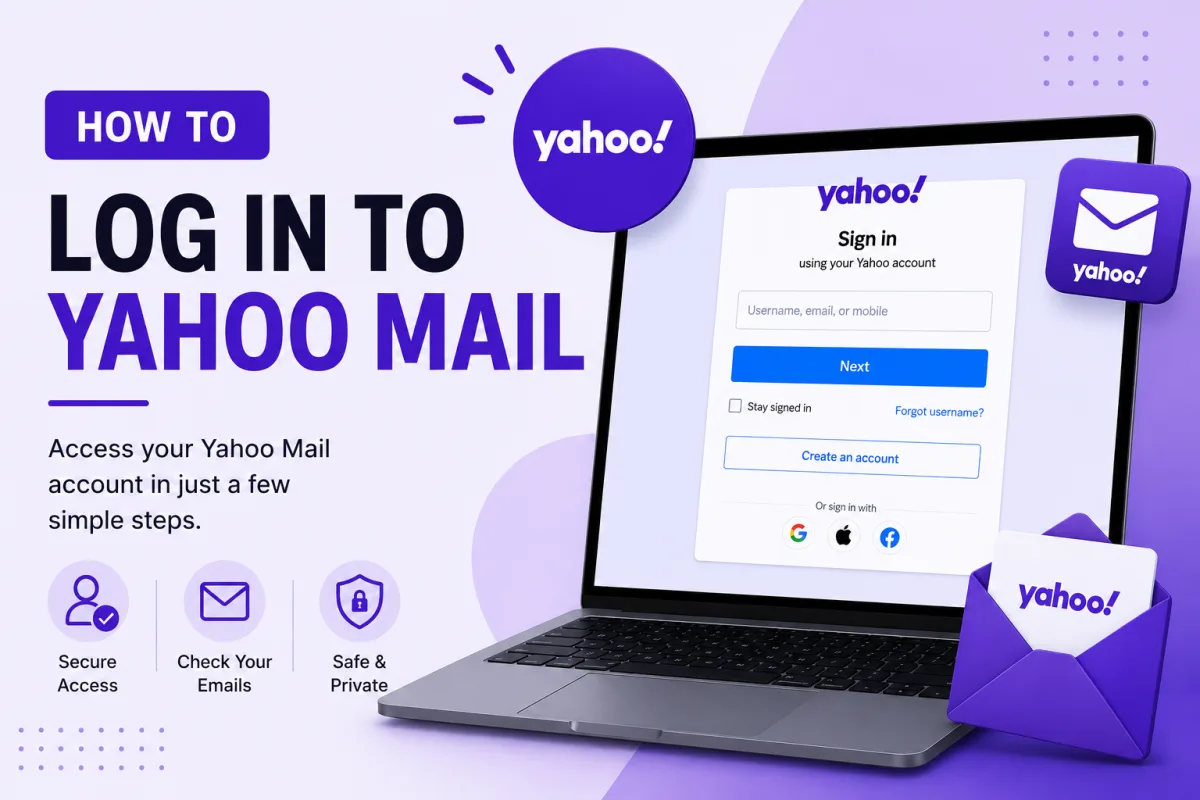
Yahoo Mail has more ways to sign in than most services — a password, Account Key, passkeys, two-step verification — and they interact in ways that catch people out. This guide covers the ordinary route first, then the situations that actually send people looking for help.
Signing in on a computer
Go to mail.yahoo.com.
Enter your Yahoo email address and select Next.
Enter your password, or approve the sign-in on your phone if Account Key is switched on.
Complete any verification Yahoo asks for.
A mail client is demanding a passkey
When adding Yahoo to Outlook, Apple Mail, Thunderbird or another email application, use the built-in Yahoo account option or “Sign in with Yahoo” whenever it is available. Modern applications can open Yahoo’s browser-based sign-in page and complete verification without asking you to enter credentials directly into the mail client.
If an older application supports only manual server settings, becomes stuck at a passkey prompt, or cannot open Yahoo’s sign-in page, you may need a third-party app password.
An app password is a 16-character code created for a particular application:
Sign in to Yahoo in a browser and open Account Security.
Find External connections.
Select Create app password.
Enter a name that identifies the application or device.
Select Generate password.
Paste the generated code into the application’s password field.
App passwords are particularly relevant when Yahoo Account Key or two-step verification is enabled, or when an older application cannot use Yahoo’s modern sign-in process.
Do not create an app password if the application successfully opens Yahoo’s official sign-in page. Complete the Yahoo sign-in instead.
Yahoo Account Key
Account Key is Yahoo's passwordless option. Instead of typing a password, Yahoo sends an approval prompt to the Yahoo app on your phone, and you tap to confirm.
Convenient when it works. Two things to know:
It requires notifications. If the prompt never arrives, check that notifications are enabled for the Yahoo app both in the app and in your phone's settings, then select Resend on the sign-in page to request a new one.
It cannot be combined with two-step verification. Yahoo treats them as alternatives rather than layers. If you want two-step verification, you must disable Account Key first — and if you want to go back to signing in with a password, disabling Account Key is how.
Passkeys
A Yahoo passkey lets you verify your identity with your device’s fingerprint, face recognition, screen-lock code or another supported device-authentication method instead of typing your Yahoo password.
A passkey may be stored only on one device or synchronised through a supported password manager or platform account. Whether it appears on another device depends on how the passkey was created and where it is stored.
When signing in on a computer with a passkey stored on your phone, Yahoo may display a QR code. Scan it with the phone and follow the device prompts to approve the sign-in.
Passkeys can be created and removed from Yahoo Account Security. If a passkey is unavailable, use another verification method offered by Yahoo or open Sign-in Helper.
Keep your recovery phone number and recovery email address current. Yahoo does not document issuing an emergency recovery code when an ordinary passkey is created; emergency recovery codes belong to certain two-step verification methods.
Signing in on Android
Install the Yahoo Mail app from Google Play.
Open it and enter your Yahoo address.
Sign in with your password, or approve the Account Key prompt.
The Yahoo app is the simplest route on a phone because it handles Account Key, passkeys and two-step verification natively. To add a second account later, open the account menu and choose to add another.
To use another Android mail application, select Yahoo or “Sign in with Yahoo” when the application offers it. If the application supports only manual username-and-password authentication, or cannot work with Account Key or two-step verification, generate an app password for that application.
Signing in on iPhone or iPad
You can use either the Yahoo Mail app or Apple’s built-in Mail app.
Using the Yahoo Mail app
Install Yahoo Mail from the App Store.
Open the app.
Enter your Yahoo address.
Complete Yahoo’s password, Account Key, passkey or verification process.
Using Apple Mail
On recent iOS versions:
Open Settings.
Select Apps.
Select Mail.
Open Mail Accounts.
Select Add Account.
Choose Yahoo.
Complete the Yahoo sign-in page that opens.
On older iOS versions, the route may appear under Settings → Mail → Accounts → Add Account → Yahoo.
Choose Yahoo rather than “Other” whenever the Yahoo option is available. This allows Apple Mail to use Yahoo’s supported browser-based authentication. Use manual settings and an app password only when the official Yahoo setup is unavailable or cannot be completed.
When sign-in fails
Your password is rejected on a phone but works on a computer
Two documented causes, both easy to miss. Mobile keyboards frequently auto-capitalise the first letter, silently changing your password. And if your password contains characters your phone's keyboard cannot produce, you may not be able to enter it at all — in which case change the password from a desktop computer.
The sign-in page loops without failing
Clear cookies for yahoo.com, or try a private window. A stale cookie is a common cause of a page that reloads endlessly without ever producing an error. Privacy and ad-blocking extensions can also interfere.
A phone keeps failing to sign in
Start with the affected application rather than revoking access from every device:
Update the mail application and the phone’s operating system.
Confirm the phone’s date and time are set automatically.
If you use Account Key, make sure notifications are enabled for the Yahoo app.
Remove the Yahoo account from the affected mail application and add it again using the Yahoo account option.
If the application uses manual settings, create a fresh app password for that application.
Review External connections in Yahoo Account Security and remove the affected connection if it appears stale.
Remove all connected applications only when you suspect unauthorised access. Doing so signs applications out and requires every trusted mail client to be connected again.
You have run out of text messages
Yahoo limits the number of verification text messages that can be requested in one day. If the limit is reached, Yahoo says you must wait 24 hours before trying again.
Do not continue requesting codes repeatedly. After 24 hours, try signing in through the Yahoo Mail app or use another verification method if Yahoo offers one.
You cannot sign in at all
Yahoo has a Sign-in Helper that identifies common account problems and guides you to the right recovery route. It is a better starting point than guessing at which method to reset.
Keeping access
Yahoo's variety of sign-in methods is a strength until one of them fails and you find it was your only route in. Two habits prevent that:
Keep a recovery phone or email current, and check occasionally that you still control it.
If you use a passkey, check where it is stored and whether it synchronises to another trusted device. Keep a recovery phone number and recovery email address current so losing one device does not leave you without another recovery method.
Official Yahoo sources
* Yahoo: Create or remove a passkey
* Yahoo: Use and manage Account Key
* Yahoo: Generate and manage third-party app passwords
* Yahoo: Set up Yahoo Mail in the iOS Mail app
* Yahoo: Fix problems signing in
Enquiries
Frequently asked questions
Why does Yahoo ask for a passkey when I add it to Outlook or iPhone Mail?
Use the built-in Yahoo account option or “Sign in with Yahoo” when the application supports it. If an older application becomes stuck at a passkey prompt or supports only manual username-and-password authentication, create an app password in Yahoo Account Security and use it for that application.
What is Yahoo Account Key?
Passwordless sign-in: Yahoo sends an approval to the Yahoo app on your phone instead of asking for a password. It cannot be used at the same time as two-step verification.
Can I use Account Key and two-step verification together?
No. Yahoo treats them as alternatives. To use two-step verification you must disable Account Key first.
Why does Yahoo reject my password on my phone but not my computer?
First confirm that the password was entered correctly and that the phone is using the built-in Yahoo sign-in option. An older or manually configured mail application may require an app password, particularly when Account Key or two-step verification is enabled. If the Yahoo website also rejects the password, use Sign-in Helper.
Next delivery
Keep reading
Yahoo Mail Security
Yahoo Mail Security: 2FA and App Passwords
Secure Yahoo Mail with two-step verification, Account Key, security keys and app passwords for older or manually configured applications.
6 min read
Yahoo Mail Password Reset
How to Reset Your Yahoo Mail Password
Reset a forgotten Yahoo password with Sign-in Helper, understand recovery limitations, review app passwords and find the right route for provider-managed accounts.
5 min read
Yahoo Mail Troubleshooting
Yahoo Mail Not Working? Common Fixes
Fix Yahoo Mail problems involving missing messages, sending failures, storage, filters, Apple Mail, browser loading and device synchronisation.
7 min read
Yahoo Mail Sign Up
How to Create a Yahoo Mail Account
Create a Yahoo Mail account, choose a permanent address, verify your mobile number, configure recovery and understand disposable addresses.
6 min read
Yahoo Mail IMAP
Yahoo Mail IMAP Settings
Use Yahoo Mail IMAP in Outlook, Apple Mail or Thunderbird with the correct server, port, encryption and supported authentication method.
6 min read
Yahoo Mail SMTP
Yahoo Mail SMTP Settings
Use Yahoo Mail SMTP with the correct server, ports, encryption and authentication, and fix sending problems in clients, printers and scripts.
6 min read