Tuta Security: 2FA and App Passwords
Tuta has no app passwords — and doesn't need them. What actually protects your account, how to set up two-factor authentication, and the one thing to save first.
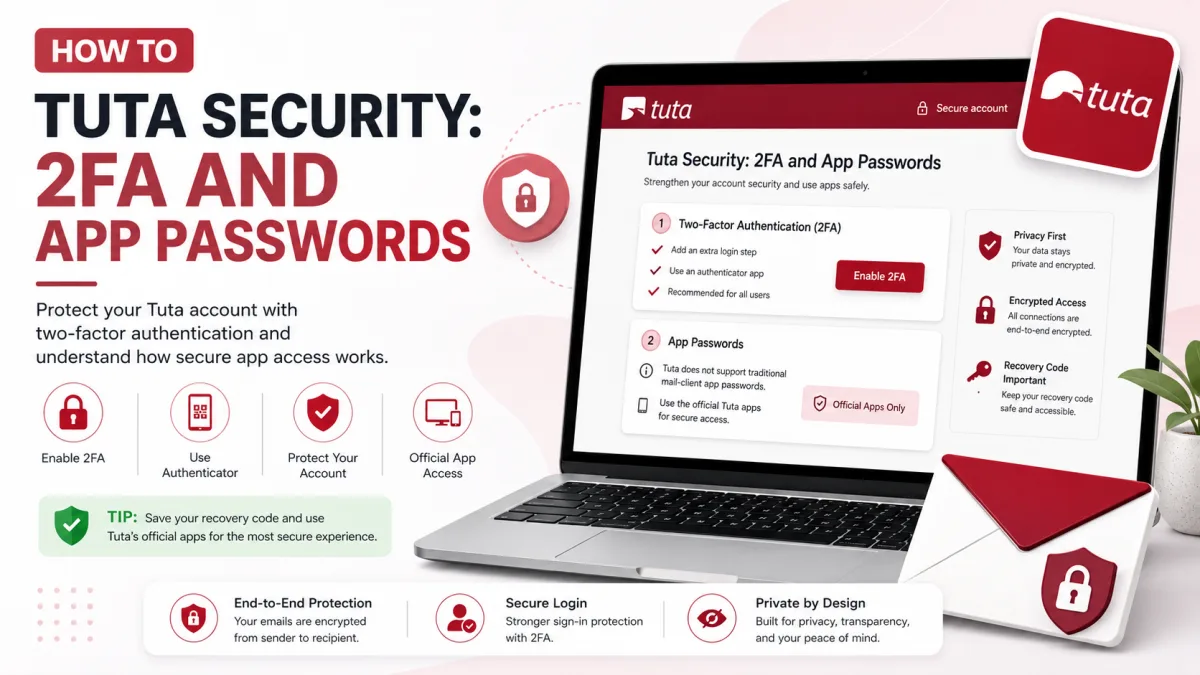
Tuta's security model is unusual in a way that shows up immediately if you've come from another provider: several of the settings you'd go looking for don't exist, because the underlying design makes them unnecessary. Here's what protects a Tuta account, what to turn on, and what to save before you do anything else.
First: there are no app passwords
If you've used Gmail, Yahoo or GMX, you'll know app passwords — single-purpose passwords you generate so a mail program can sign in without your real credentials, particularly once two-factor authentication is on.
Tuta doesn't have them, and it isn't an omission. An app password exists to authenticate a client connecting over IMAP, POP3 or SMTP. Tuta offers no IMAP, SMTP or POP3 access at all, so there's no third-party client to authenticate and nothing for an app password to do. You reach your mailbox through Tuta's own apps, signing in with your actual password and second factor.
The security benefit that app passwords provide elsewhere — limiting the damage when one client is compromised — is handled differently here, through session management, covered below.
What actually protects your account
Layer | What it does | Plan |
|---|---|---|
Your password | Encrypts your private key, which decrypts your mailbox. Not just a login credential. | All |
Two-factor authentication | Stops anyone signing in with a stolen password alone. | All |
Recovery code | The only route back in if you lose the password or second factor. | All |
Session handling | Shows active sessions and lets you end them. | All |
PIN and biometric unlock | Protects the app on an unlocked device. | All |
End-to-end encryption | Applied to mail, contacts and calendars automatically. | All |
Worth noting that every one of those is on the free plan. Tuta withholds storage, aliases and offline access from free accounts, but not security — an unusual choice, and a good one.
Why your password matters more here
When you create a Tuta account, a keypair is generated on your own device, and the private key is encrypted with your password before it's sent to Tuta's servers. That's the mechanism behind the zero-access claim: the key that decrypts your mail arrives already locked with something Tuta never sees.
The practical consequence is that your password isn't only a gate — it's part of the encryption. Choose it accordingly, keep it in a password manager, and don't reuse it anywhere.
Setting up two-factor authentication
Tuta supports two second factors, and you add them in Settings, under the login section.
Authenticator app (TOTP)
A six-digit rotating code from an app like Aegis, Ente Auth, Authy or Google Authenticator. Easy to set up, works everywhere, and needs no extra hardware.
Tuta makes an honest point about it that most providers skip: if the authenticator app runs on the same phone you log in from, you don't really have two independent factors — anyone holding that phone has both. It's still a substantial improvement over a password alone, but it's strongest when the codes live on a different device.
Hardware security key (U2F)
A physical key you tap or plug in. Tuta recommends this as the stronger option, and it's the one that meaningfully defends against phishing: a key checks which site is asking before it responds, so a convincing fake login page gets nothing. Any key built to the U2F standard should work.
Support covers the web client, the desktop clients for Windows, macOS and Linux, and Android and iOS where the phone can reach the key over USB or NFC.
Adding a second factor generates a new recovery code. Tuta shows it as you complete setup and asks you to write it down. Do it then — an older code saved at signup won't match your new configuration, and this is the single most common way people lock themselves out while trying to be more secure.
The recovery code is the thing to save
Every route back into a Tuta account runs through the recovery code. Without a second factor, it resets your password on its own; with one, you need it alongside either your password or your second factor. Lose your password and your second factor together and nobody — including Tuta — can restore the mailbox.
You can look the code up any time from inside your mailbox, though you'll be asked to re-enter your password to see it. That's deliberate: it means someone who finds a logged-in session can't read the code and take the account over.
Our guide to the recovery code covers exactly what each reset needs.
Protecting the device, not just the account
Two-factor authentication guards the login. It does nothing about an app that's already signed in on a phone someone else picks up.
Turn on PIN or biometric unlock in the Tuta apps, so the mailbox needs a second gesture even on an unlocked device.
Review your sessions periodically and close any you don't recognise or no longer need. This is the closest equivalent to revoking an app password: if a device is lost or you've signed in somewhere you shouldn't have, ending the session cuts that access without changing your password.
Log out properly on shared machines rather than closing the tab.
Sending encrypted mail to people who don't use Tuta
Mail between Tuta users is end-to-end encrypted automatically, with nothing to configure. For anyone else, you can protect an individual message with a password: the recipient gets a link and enters the password to read it.
The security of this rests entirely on how you share that password. Sending it in a follow-up email defeats the purpose — use a phone call, a message on a different platform, or something you've agreed in advance.
What encryption doesn't cover
Tuta encrypts more than most providers, including subject lines, attachments, contacts and calendars, and it has moved to quantum-resistant encryption for the long term. It's worth being clear-eyed about the limits, though.
Email delivery inherently requires some information to travel unencrypted: a message can't reach its destination unless the systems handling it know where it's going. That's a property of email itself rather than a weakness specific to Tuta, but it means encrypted mail still reveals patterns — who corresponds with whom, and when. If that metadata is what you need to protect, email is the wrong tool regardless of provider.
Encryption also can't help once a message is decrypted on a device. A compromised phone or laptop reads your mail exactly as you do.
Spotting spoofed mail
Tuta checks incoming messages against sender authentication records and displays a warning when a message fails. Treat that banner seriously — it usually means the sender's domain isn't authorised to send from where the message came from, which is the signature of a spoofing attempt.
If you run your own custom domain on Tuta, the SPF, DKIM, DMARC and MTA-STS records in the setup wizard are what let other providers run the same check on your mail. Getting them all verified protects your recipients as well as your delivery rate.
A five-minute checklist
Save your recovery code somewhere outside the mailbox — on paper, or in a password manager.
Turn on two-factor authentication, preferring a hardware key if you have one.
Save the new recovery code issued when you enable it.
Enable PIN or biometric unlock in the apps you use.
Review active sessions and close anything stale.
If you're troubleshooting a sign-in rather than hardening one, our notes on logging in cover the common failures.
Checked against the source
Official sources
- Tuta — Everything you need to know about Tuta's encryption ↗
- Tuta — Pricing and plan comparison ↗
- Tuta — Tutanota now supports 2FA with TOTP and U2F ↗
- Tuta — U2F support on desktop clients ↗
- Tuta — What is U2F used for and what are the benefits? ↗
- Tuta — Encrypted email service now supports a secure password reset ↗
- Tuta — SPF, DMARC and DKIM for custom domains ↗
- Tuta — Security at Tuta ↗
Enquiries
Frequently asked questions
How do I create an app password for Tuta?
You can't, and you don't need one. App passwords exist to log mail clients in over IMAP or SMTP; Tuta offers neither, so there's nothing for one to authenticate.
What two-factor options does Tuta support?
An authenticator app (TOTP) or a hardware security key (U2F). No SMS.
Is two-factor authentication available on the free plan?
Yes. Tuta's security features are included on every plan.
Which is better, an authenticator app or a security key?
Tuta recommends a hardware key. It also notes that an authenticator app on the same phone you log in from isn't really a second independent factor.
What happens if I lose my security key?
You can reset your second factor using your login password and your recovery code.
Can I send an encrypted email to someone who doesn't use Tuta?
Yes, by protecting it with a password you share with them separately.
Next delivery
Keep reading
Tuta Troubleshooting
Tuta Not Working? Common Fixes
What to check when Tuta will not load, send, receive, search or notify—and how to tell a local problem from a wider outage.
12 min read
Tuta Password Reset
How to Reset Your Tuta Password
Tuta cannot send a conventional reset email. Here is how to reset a forgotten password or lost second factor with the recovery code.
8 min read
Tuta Login
How to Log In to Tuta
Sign in to Tuta on the web, desktop, mobile or Thunderbird. Fix rejected passwords, 2FA codes, approval holds and deleted-account errors.
8 min read
Tuta Sign Up
How to Create a Tuta Account
Signing up takes a minute — but two things catch people out: the recovery code you can never retrieve again, and the approval hold that stops your new address working.
8 min read
Tuta Settings
Tuta Server Settings: IMAP, SMTP and POP3
Tuta publishes no IMAP, SMTP or POP3 settings — and never will. Here's the reasoning, what replaces them, and the DNS records that do matter.
7 min read
GMX Security
GMX Security: 2FA and App Passwords
Turn on GMX two-factor authentication, create application-specific passwords for mail programs, and understand why one password may not be enough.
5 min read