How to Reset Your Tuta Password
Tuta cannot send a conventional reset email. Here is how to reset a forgotten password or lost second factor with the recovery code.
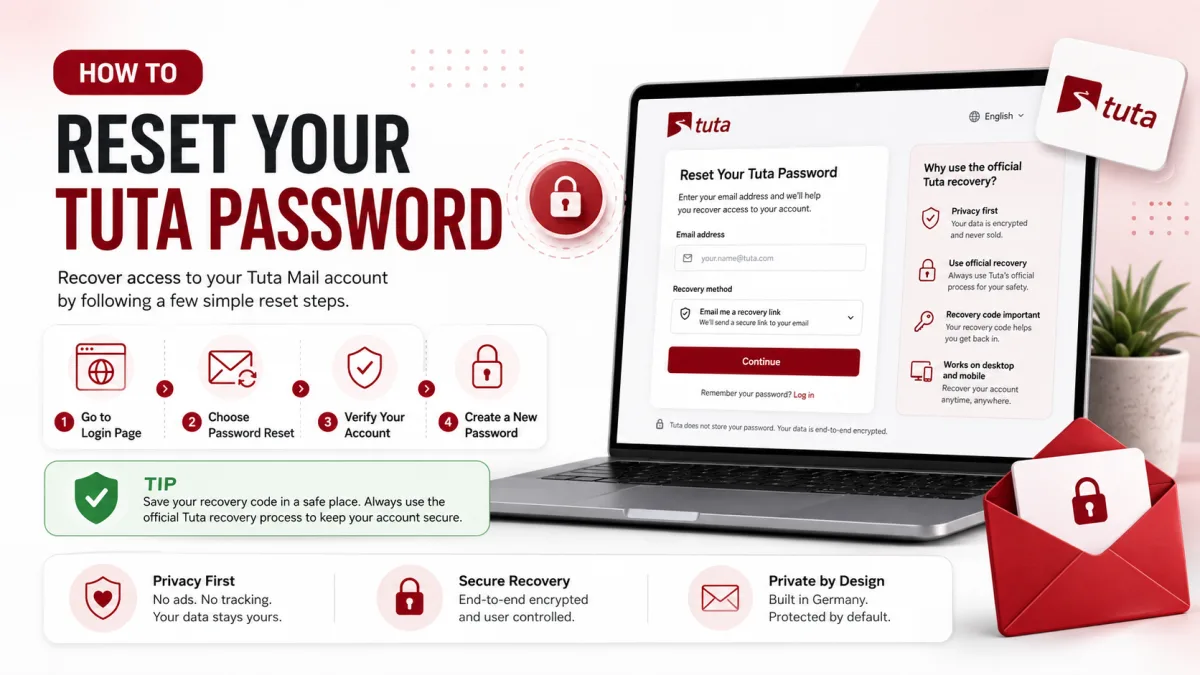
Tuta does not reset a forgotten password by emailing a link to another address or asking support to verify your identity. Account recovery depends on the recovery code generated for your mailbox.
The exact credentials required depend on whether two-factor authentication is enabled and whether you are resetting the password or the second factor.
If Tuta is still open on another authenticated device, do not sign out. Preserve that access while checking which recovery options remain available.
Before starting a reset
Check the simple causes first:
Confirm that the complete email address is correct.
Check that you selected the correct Tuta domain.
Turn off Caps Lock.
Confirm the keyboard layout.
Check whether a password manager is filling an older password.
If a TOTP code is rejected, synchronize the device’s date, time and time zone.
Read the exact message displayed below Tuta’s login form.
A free account deleted after at least six months without a login and an account suspended by Tuta require different processes. A password reset will not restore a deleted mailbox or remove a suspension.
If the problem is not a forgotten password, see How to Log In to Tuta.
Find your recovery code while you still have access
If you still know the password and can access the account:
Open Tuta.
Go to Settings → Login.
Find the recovery-code option.
Enter the password when asked.
Display the current recovery code.
Compare it with the copy stored outside the mailbox.
Save a correct copy in a secure location.
Tuta requires the password before revealing the recovery code. Someone who finds an already unlocked mailbox therefore should not be able to display it without also knowing the password.
Store the recovery code somewhere separate from the account it protects. Suitable options include:
A reputable password manager
A printed copy stored securely
An encrypted offline record
Do not keep the only copy in an email inside the Tuta mailbox.
What credentials do you need?
Tuta describes recovery as a one-out-of-two model without 2FA and a two-out-of-three model with 2FA.
The three possible credentials are:
Your password
Your recovery code
Your registered second factor
What you need to do | Required credentials |
|---|---|
Reset a forgotten password without 2FA | Recovery code |
Reset a forgotten password with 2FA | Recovery code and a registered second factor |
Remove lost second factors | Current password and recovery code |
View or update the recovery code while signed in | Current password |
Recover after losing both the password and second factor | Not possible through Tuta’s reset process |
The recovery code is central to every recovery operation. A support agent cannot replace it with an identity check.
How to reset a forgotten Tuta password
Open the official login page at
https://app.tuta.com.Select More.
Select Lost account access.
Choose the password-recovery option presented by Tuta.
Enter the complete Tuta email address.
Enter the recovery code.
If 2FA is enabled, complete the required second-factor check.
Create a new, unique password.
Sign in with the new password.
Tuta may adjust labels or screen order as its applications change. Follow the instructions displayed on the official login page rather than screenshots from an older guide.
A successful reset restores access to the encrypted mailbox. It is not supposed to erase the existing messages, contacts or calendars.
After signing in:
Confirm that the mailbox data is available.
Open Settings → Login.
Check that the externally stored recovery code matches the current code.
Review active sessions.
Remove sessions you do not recognize.
Update the saved password on your trusted devices.
Do not repeatedly attempt a reset with guessed codes. First confirm that the recovery code belongs to the correct account and has been copied completely.
How to remove a lost second factor
If you still know the password but have lost access to the authenticator application or hardware security key:
Open
https://app.tuta.com.Select More → Lost account access.
Enter the complete email address.
Enter the current password.
Enter the recovery code.
Follow Tuta’s instructions to remove the registered second factors.
Sign in and register a replacement second factor.
Save and verify the recovery code shown in the login settings.
Tuta’s support documentation says this process removes all registered second factors. After access is restored, register the factors you intend to use again.
Where practical, register more than one second factor. For example, use a primary hardware key and keep a second key securely stored as a backup.
If the recovery code is rejected
Check the following before assuming that recovery is impossible:
The code belongs to the correct Tuta account.
The complete code was copied without missing characters.
You did not confuse the recovery code with a TOTP setup secret.
You selected the correct lost-access option.
An OCR application did not misread similar-looking characters.
A password manager did not save an older or incomplete note.
Unwanted spaces or line breaks were not inserted.
If another authenticated session is still available and you know the password, compare the saved copy with the code currently displayed under Settings → Login.
Tuta allows a signed-in user who knows the password to update the recovery code. Therefore, if you suspect someone obtained the password, change both the password and recovery code rather than changing only the password.
Never send the recovery code to a person claiming to be Tuta support. Anyone who obtains the necessary recovery credentials may be able to take control of the account.
Adding 2FA and the recovery code
When a second factor is added, Tuta displays the recovery code and asks you to store it.
Tuta’s official documentation does not establish that enabling 2FA always generates a different recovery code or automatically invalidates the code saved during signup. Avoid stating that every user receives a newly generated code at that moment.
Instead:
Open Settings → Login after enabling 2FA.
Display the current recovery code.
Compare it with the copy stored outside the mailbox.
Replace the stored copy if it does not match.
Record which account the code protects.
The important point is not whether the code changed—it is whether the saved copy matches the code currently shown by the account.
Changing a password while already signed in
If you know the current password and simply want to replace it:
Open Tuta.
Go to Settings → Login.
Select the password-change option.
Enter the current password.
Create a strong, unique replacement.
Update the password manager.
Sign in again on other trusted devices if required.
A routine password change is different from a lost-password reset because you still possess the current password.
If you are changing it because of suspected credential theft:
Change the password from a trusted device.
Update the recovery code as well.
Review and end unfamiliar sessions.
Check the registered second factors.
Remove any second factor you do not recognize.
Update passwords on other services if the old password was reused.
Tuta has specifically advised updating both the password and recovery code when password compromise is suspected.
If you lost both the password and second factor
With 2FA enabled, resetting the password requires both the recovery code and a registered second factor. If the password and every second factor are lost, the recovery code alone is not sufficient.
Tuta states that this combination cannot be recovered through its reset process.
Support cannot replace the missing credentials or decrypt the mailbox for you.
If an authenticated session is still open:
Do not log out or delete the application.
Export important mail where the available client and plan allow it.
Record important contacts.
Change the contact email on third-party accounts.
Move domain, banking, work and security accounts away from the inaccessible address.
Save any data that remains available before the session expires.
An existing session does not necessarily allow you to change the password or reveal the recovery code, because those sensitive actions can require the current password.
If no authenticated session remains, immediately update the email address on any third-party account you can still access through another method.
If the free account was deleted
Tuta may delete a free account after at least six months without a login. Its mailbox data cannot be restored through a password reset.
Tuta does document a limited way to reuse the deleted address with another paid Tuta account, but only when you still possess the correct credentials for the deleted account. Reusing the address does not restore its old messages, contacts or calendar data.
If the required credentials are also missing, the deleted address cannot be recovered through that process.
A message below the login form should indicate when inactivity deletion is the reason access failed.
How to avoid permanent lockout
Use all of the following protections together:
Store the password in a reputable password manager.
Keep the recovery code outside the Tuta mailbox.
Confirm periodically that the saved code matches the current code.
Enable two-factor authentication.
Register a backup second factor where practical.
Store backup hardware keys separately from the primary device.
Keep the device date and time synchronized for TOTP.
Review active sessions occasionally.
Sign in regularly if using a free account.
Never share the password, recovery code or authenticator secret.
Two-factor authentication protects against password theft, but it also introduces another credential that can be lost. A verified recovery code and a backup second factor reduce that risk.
For 2FA setup and account-protection guidance, see Tuta Security: 2FA and Account Protection.
Checked against the source
Official sources
Enquiries
Frequently asked questions
Can Tuta support reset my password?
No. Tuta’s recovery process is controlled by the account holder’s recovery credentials. Support cannot substitute an identity check or conventional reset email for the recovery code.
What do I need to reset a Tuta password without 2FA?
You need the account’s recovery code.
What do I need to reset a Tuta password with 2FA enabled?
You need the recovery code and a registered second factor.
Can I remove a lost Tuta second factor?
Yes, if you still have the current password and recovery code. Select More → Lost account access on the official login page and follow Tuta’s instructions.
Can I view my Tuta recovery code after signup?
Yes. While you still know the password, you can view or update the current recovery code under Settings → Login.
What happens if I lose my Tuta password and second factor?
With 2FA enabled, the recovery code alone is not enough to reset the password. If the password and all registered second factors are lost, Tuta says the account cannot be reset through its recovery process.
Next delivery
Keep reading
Tuta Security
Tuta Security: 2FA and App Passwords
Tuta has no app passwords — and doesn't need them. What actually protects your account, how to set up two-factor authentication, and the one thing to save first.
7 min read
Tuta Troubleshooting
Tuta Not Working? Common Fixes
What to check when Tuta will not load, send, receive, search or notify—and how to tell a local problem from a wider outage.
12 min read
Tuta Login
How to Log In to Tuta
Sign in to Tuta on the web, desktop, mobile or Thunderbird. Fix rejected passwords, 2FA codes, approval holds and deleted-account errors.
8 min read
Tuta Sign Up
How to Create a Tuta Account
Signing up takes a minute — but two things catch people out: the recovery code you can never retrieve again, and the approval hold that stops your new address working.
8 min read
Tuta Settings
Tuta Server Settings: IMAP, SMTP and POP3
Tuta publishes no IMAP, SMTP or POP3 settings — and never will. Here's the reasoning, what replaces them, and the DNS records that do matter.
7 min read
GMX Security
GMX Security: 2FA and App Passwords
Turn on GMX two-factor authentication, create application-specific passwords for mail programs, and understand why one password may not be enough.
5 min read