Tuta Server Settings: IMAP, SMTP and POP3
Tuta publishes no IMAP, SMTP or POP3 settings — and never will. Here's the reasoning, what replaces them, and the DNS records that do matter.
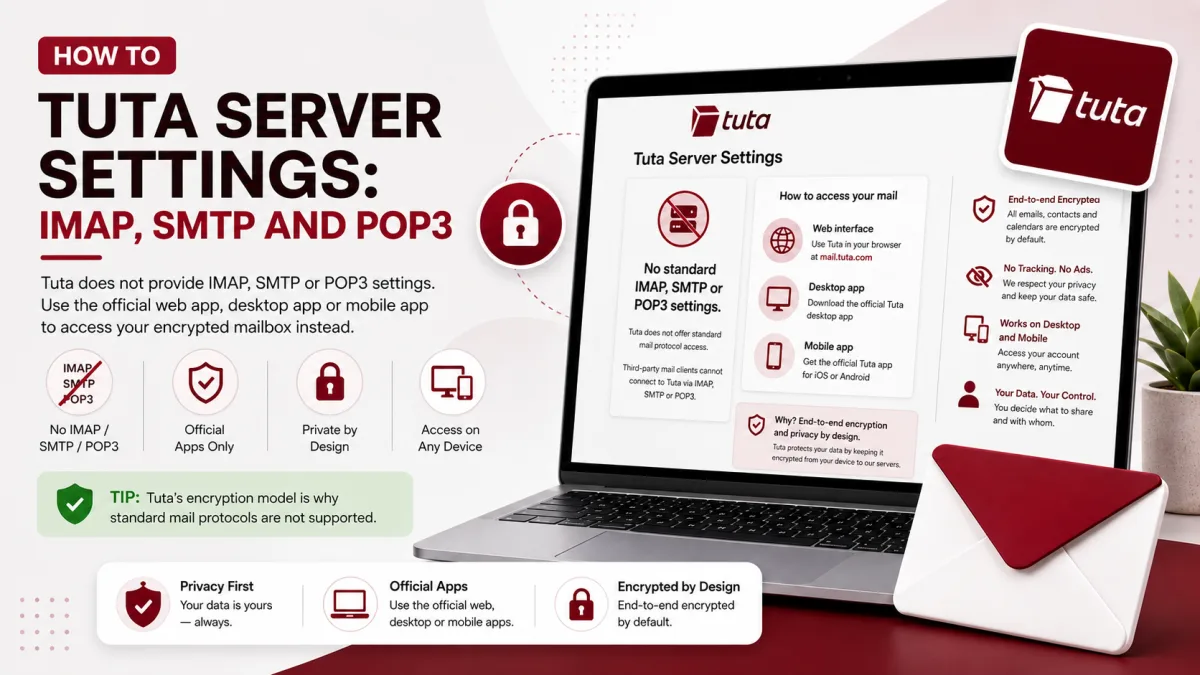
Tuta does not publish IMAP, SMTP or POP3 server settings, and no combination of hostname, port and encryption method will connect Thunderbird, Outlook or Apple Mail to a Tuta mailbox. This is not a switch buried in an account menu, and it is not a restriction lifted by paying. Tuta does not run these services for user access, and has said repeatedly that it does not intend to.
If you came here for a table of servers and ports, that table does not exist — not on this page and not anywhere else, whatever some sites publish. What follows is why the protocols are absent, what Tuta provides instead, and the one part of Tuta that genuinely does involve server configuration.
The short answer
What you're looking for | Status at Tuta |
|---|---|
Incoming server (IMAP) | Not offered |
Incoming server (POP3) | Not offered |
Outgoing server (SMTP submission) | Not offered to mail clients |
App password for a mail client | Not applicable — there is no protocol to authenticate against |
Official bridge application | None |
Custom domain DNS records | Yes — see below |
Why there are no IMAP or POP3 settings
Tuta's position is architectural, not commercial. On its security page, Tuta states that it does not offer IMAP because the protocol would only work if it sent decrypted data to your device.
Its desktop client documentation puts the same case more plainly: supporting IMAP is not an option because it would undermine the encryption Tuta is built around, and would technically only be possible if your emails were downloaded and stored on your computer unencrypted.
The conflict is real rather than rhetorical. Tuta encrypts mailbox contents so that its own servers cannot read them. IMAP and POP3 both assume the opposite — that the server holds readable messages and will hand them to any client that authenticates successfully. Those two designs cannot both be true of the same mailbox.
Understanding this saves time, because it explains why the answer never changes. It does not depend on your plan, your region, how old your account is, or which client you are trying to use.
But doesn't Tuta use SMTP?
Yes — just not the part you would configure.
SMTP is how mail servers talk to each other, and Tuta's servers necessarily speak it, or mail from the outside world would never reach you. Tuta describes the MX record for a custom domain as relaying mail for your domain to Tuta's servers, and its SPF record as marking the Tuta server as a valid sender for your domain. Both only make sense in a system exchanging mail over SMTP.
What Tuta doesn't offer is SMTP submission: the connection your mail client opens to hand over a message you have just written. That is the missing piece, and it is exactly the piece a mail client needs. The distinction matters because it explains a common confusion — Tuta is a fully participating member of the email system, it simply doesn't let third-party software stand between you and your mailbox.
The settings that do exist: custom domain DNS
If you bring your own domain to Tuta, there is real configuration to do. It happens in your domain registrar's DNS panel rather than in a mail client, and it is the only context in which "Tuta server settings" is a meaningful phrase.
You add a domain under Settings → Global Settings → Custom email domains, then work through the setup wizard. The records it asks for are:
Record type | Purpose |
|---|---|
TXT | Proves you own the domain |
MX | Relays mail for your domain to Tuta's servers. Any priority value is acceptable. |
TXT (SPF) | Marks the Tuta server as a valid sender of mail from your domain |
CNAME ( | DKIM — signs your outgoing mail so recipients can detect spoofing |
CNAME (MTA-STS) | Requires transport encryption and authentication between mail servers |
TXT ( | DMARC policy. Recommended rather than required. |
Copy the values from the wizard, not from a guide. Tuta generates the exact targets each record should point to and displays them during setup. Values published on third-party sites are frequently out of date, and can differ between domains. This page deliberately doesn't reprint them.
Tuta shows a status indicator for each domain once the records are in place. Expect a delay before it turns green — depending on your registrar, DNS changes can take a few hours to become visible to other mail servers, so a failed check immediately after saving usually means "not yet" rather than "wrong".
What Tuta gives you instead
Tuta's answer to "how do I read my mail without IMAP" is its own client software, available on every major platform: a web app, desktop clients for Windows, macOS and Linux, and apps for Android and iOS.
The feature doing the work that IMAP or POP would normally do is offline mode. Tuta introduced it explicitly as the replacement for those protocols: your emails, calendars and contacts are cached locally in encrypted form, so the app opens quickly and works without a connection. Paying users can control how far back the cache reaches.
For getting mail in and out:
Import runs from the desktop client under Settings → Email Import, accepting individual
.emlfiles or whole.mboxarchives exported from another provider. At the time of writing Tuta restricts this to its Legend and Unlimited plans.Export works by dragging messages out of the desktop client, or using the normal export option.
The practical shape of this: you can move mail in and out in bulk, but you cannot keep a third-party client continuously synchronised. If your workflow depends on one mail app holding six accounts side by side, Tuta will not fit into it.
A note on unofficial bridges
Community projects surface periodically claiming to run a local IMAP and SMTP bridge for Tuta, modelled on Proton Mail Bridge. It's worth being clear about the difference: Proton builds, ships and supports its bridge as part of its paid service. Tuta has no equivalent, and third-party tools are not endorsed, audited or supported by it.
Any such tool necessarily needs your Tuta credentials and access to your mailbox in decrypted form — which is precisely the boundary Tuta's design exists to protect. If you are considering one, treat it as you would any software you hand your email password to: read the source, check who maintains it, and weigh what you gain against what you are exposing. We don't recommend them.
If you actually need IMAP
Sometimes the honest answer is that the provider is wrong for the job. If a desktop client, a shared team mailbox, a mail archiving tool or a business system requires IMAP or SMTP, no amount of configuration will make Tuta work, and it is better to know that at the start than three hours in.
Realistic options are to choose a provider that offers IMAP with encryption at rest rather than end-to-end, or to use Proton Mail, which reaches a similar encryption model but ships an official bridge on its paid plans.
If you do move, export your mail from the Tuta desktop client before you close the account. There is no protocol-level way to pull a Tuta mailbox out afterwards, which is the same design decision that brought you to this page.
Errors you'll see if you try anyway
Setting up a Tuta address in a mail client fails in predictable ways, and none of them indicate a fault with your account:
"Cannot find server" or "Server not responding" — nothing is listening on the address you entered. Expected.
Automatic setup fails in Outlook or Apple Mail — autodiscovery finds no mail configuration for the domain, because there isn't one to find.
A settings table you found elsewhere doesn't work — some sites publish invented or long-obsolete server details for Tuta. They fail for the same reason: there is no service at the other end.
If you are having trouble with the Tuta apps themselves rather than a third-party client, that's a different problem — see our troubleshooting guide, or the notes on signing in if you're being locked out.
Checked against the source
Official sources
Enquiries
Frequently asked questions
What are the Tuta IMAP settings?
There aren't any. Tuta does not run an IMAP service for user access, so there is no hostname, port or encryption setting to enter.
Can I use Tuta with Thunderbird, Outlook or Apple Mail?
No. Tuta mailboxes are only reachable through Tuta's own web app, desktop clients and mobile apps.
Does Tuta have a bridge like Proton Mail Bridge?
No. Tuta offers no official bridge and does not endorse third-party ones.
Does Tuta support SMTP?
Tuta's servers exchange mail with other mail servers over SMTP, which is how mail reaches you at all. What it doesn't offer is SMTP submission — the connection a mail client uses to send a message you wrote.
What DNS records do I need for a custom domain on Tuta?
An ownership TXT record, an MX record, an SPF TXT record, DKIM CNAME records, MTA-STS CNAME records, and a recommended DMARC TXT record. Tuta's setup wizard generates the exact values.
How do I get my emails out of Tuta?
Export them from the desktop client by dragging them out or using the export option. There is no protocol-level way to bulk-transfer a Tuta mailbox.
Next delivery
Keep reading
Tuta Security
Tuta Security: 2FA and App Passwords
Tuta has no app passwords — and doesn't need them. What actually protects your account, how to set up two-factor authentication, and the one thing to save first.
7 min read
Tuta Troubleshooting
Tuta Not Working? Common Fixes
What to check when Tuta will not load, send, receive, search or notify—and how to tell a local problem from a wider outage.
12 min read
Tuta Password Reset
How to Reset Your Tuta Password
Tuta cannot send a conventional reset email. Here is how to reset a forgotten password or lost second factor with the recovery code.
8 min read
Tuta Login
How to Log In to Tuta
Sign in to Tuta on the web, desktop, mobile or Thunderbird. Fix rejected passwords, 2FA codes, approval holds and deleted-account errors.
8 min read
Tuta Sign Up
How to Create a Tuta Account
Signing up takes a minute — but two things catch people out: the recovery code you can never retrieve again, and the approval hold that stops your new address working.
8 min read
Mailfence Settings
Mailfence Server Settings: IMAP, SMTP and POP3
Every Mailfence server setting in one place — incoming, outgoing, ports and encryption.
3 min read