Gmail Server Settings: IMAP, SMTP and POP3
Every Gmail server setting in one place, plus the Gmail-specific IMAP behaviour — labels as folders, All Mail, and why deleting a message may not delete it.
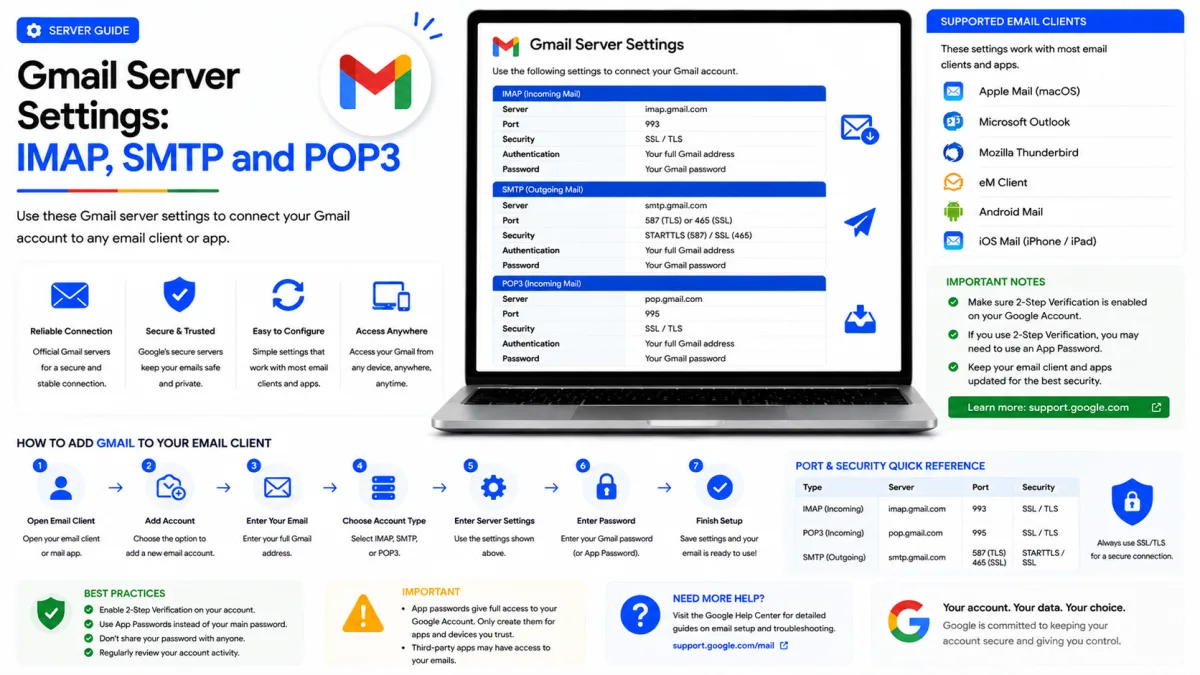
Server settings
Gmail
- IMAP incoming SSL/TLS
- SMTP outgoing STARTTLS
- POP3 download SSL/TLS
imap.gmail.com
port 993
smtp.gmail.com
port 587
pop.gmail.com
port 995
- Authentication
- Use “Sign in with Google” (OAuth). Older clients without Google sign-in may require an app password from an eligible account with 2-Step Verification.
- IMAP access
- Always enabled for personal Gmail accounts; Workspace administrators may restrict it
- Alt SMTP port
- 465 with SSL/TLS
- Username
- Your complete Gmail address, such as name@gmail.com
- POP access
- Enable it first in Gmail under Settings → See all settings → Forwarding and POP/IMAP
Everything needed to connect Gmail to a mail client, in one place — and, just as importantly, the Gmail-specific behaviour that catches people out once it is connected. Gmail does not work quite like other providers over IMAP, and knowing why saves a lot of confusion later.
Gmail server settings
Protocol | Server | Port | Encryption |
|---|---|---|---|
IMAP (incoming) |
| 993 | SSL/TLS |
SMTP (outgoing) |
| 587 | STARTTLS |
POP3 (incoming) |
| 995 | SSL/TLS |
Your username is your full Gmail address. Port 465 with SSL/TLS also works for outgoing mail if your client prefers it.
Before any of it works
Personal Gmail accounts already have IMAP access enabled. Google removed the enable and disable controls in January 2025, so you do not need to switch IMAP on before connecting. Google Workspace administrators can still restrict IMAP for managed accounts.
For authentication, choose “Sign in with Google” whenever your mail client offers it. Google no longer supports applications that require you to share your ordinary Google Account password. Older software that cannot use Google sign-in may require an app password, which needs 2-Step Verification and is not available on every account.
IMAP or POP3?
Choose IMAP unless you have a specific reason not to.
IMAP synchronises. Your mail stays on Google's servers and every device sees the same mailbox — read something on your phone and it shows as read on your laptop, file it and it moves everywhere.
POP3 downloads messages to a single computer and does not synchronise changes between devices. Gmail lets you decide what happens to its server copy after a message is downloaded: keep it in the inbox, mark it as read, archive it or delete it. POP can therefore remove messages from Gmail, but only when that option has been selected.
If you do use POP, Gmail lets you choose whether messages are kept, archived or deleted after download, and whether to fetch everything or only mail arriving from now on. Set that deliberately rather than accepting the default.
How Gmail behaves over IMAP
This is the part generic guides skip, and it explains most of the odd behaviour people report after connecting a client.
Labels are folders
Gmail does not have folders. It has labels, and a message can carry several at once. Your mail client only understands folders, so Gmail presents each label as one — which means a single message can appear in several folders simultaneously. It has not been copied. It is one message wearing several labels.
Moving a message between folders in your client therefore changes its labels rather than relocating it. Usually that is what you wanted; occasionally it produces results that feel wrong.
All Mail contains everything
Gmail exposes a folder called All Mail holding every message in your account — including everything already in your inbox. Clients that synchronise it show your entire mail twice, which is the single most common "why are there duplicates?" complaint.
The fix is to exclude All Mail from synchronising. Most clients let you choose which folders to sync; unticking All Mail resolves the duplication without losing anything, since the messages are still present under their own labels.
Deleting may not delete
Gmail’s All Mail label contains almost every message in the account, including messages that also carry the Inbox or another label. Because mail clients display Gmail labels as folders, the same message may appear under both Inbox and All Mail. These are usually two views of one message rather than separate copies using twice the storage.
Some mail clients let you hide or unsubscribe from the All Mail folder if its repeated appearance is confusing. Remember that archived messages live in All Mail, so hiding it can make archived mail harder to browse from that client.
Map the special folders
Sent, Drafts, Trash and Spam exist on both sides, and if your client does not map its own to Gmail's, you get the classic symptoms: sent messages appearing twice, or drafts that vanish when you switch device. Most clients have these settings under account or folder options. Check the mapping once, at setup, rather than wondering about it for months.
Matching ports to encryption
Ports and encryption travel in pairs, and mixing them is the most common reason a correct-looking configuration refuses to connect. Port 993 expects SSL/TLS. Port 995 expects SSL/TLS. Port 587 expects STARTTLS, while port 465 expects SSL/TLS for the same outgoing job.
Take a port from one pairing and encryption from another, and the connection fails with an error that usually blames the network or your credentials — sending you looking in entirely the wrong place.
Never configure without encryption. An unencrypted connection sends your credentials in a form anyone on the same network can read, and Google refuses such connections anyway.
If it still will not connect
For personal Gmail accounts, do not look for an IMAP enable switch—it no longer exists because IMAP is always enabled. If you use a work or school account, check whether its Google Workspace administrator has restricted IMAP access.
Check how the client authenticates. A compatible client opens Google’s own sign-in page. If the software only asks for a password inside the application, update it or use an app password if your account is eligible.
Check the port and encryption pairing against the table above.
Try a mobile hotspot if sending fails. Many networks block outbound mail ports, and a message that sends on mobile data confirms the network rather than your settings.
If mail connects but does not arrive, that is a different problem — our troubleshooting guide covers storage, filters and forwarding, which account for most cases of missing mail.
Checked against the source
Official sources
Enquiries
Frequently asked questions
Why do my Gmail messages appear twice in my mail client?
Gmail exposes labels as folders, so one message may appear under both Inbox and All Mail. These are normally two views of the same message, not separate stored copies. You can hide All Mail in clients where this becomes confusing.
Why does deleting a Gmail message not delete it?
Removing a message from a Gmail label may only remove that label. To delete it reliably, move it to Gmail’s Trash folder and confirm the result on the Gmail website.
Do I need to enable IMAP in Gmail?
No, not for a personal Gmail account. Google made IMAP access permanently enabled and removed the enable and disable controls in January 2025. Google Workspace administrators may still restrict IMAP for managed accounts.
Which is better for Gmail, IMAP or POP3?
IMAP, in nearly every case. POP downloads and can remove server copies, which suits a single archiving machine and causes lasting confusion on anything else.
Next delivery
Keep reading
Gmail Sign Up
How to Create a Gmail Account
Create a Gmail address step by step — how to find a username that isn't taken, what to do when Google asks for a phone number, and the shortcuts worth avoiding.
6 min read
Gmail Troubleshooting
Gmail Not Working? Common Fixes
Why Gmail stops receiving mail, refuses to send, or loses messages you know arrived — and how to find the cause rather than guessing at it.
6 min read
Gmail Security
Gmail Security: 2-Step Verification and App Passwords
Turn on 2-Step Verification, generate an app password for mail clients that cannot use OAuth, and understand why your ordinary Gmail password stopped working.
6 min read
Gmail Password Reset
How to Reset Your Gmail Password
Reset a forgotten Gmail password, and get through Google's account recovery when you have no recovery phone or email — including what actually improves your chances of passing.
6 min read
Gmail Login
How to Log In to Gmail
Sign in to Gmail on any device — including what to do when Google asks for a passkey instead of your password, and how to fix the errors that stop you getting in.
7 min read
Gmail IMAP
Gmail IMAP Settings
Gmail’s IMAP server, port and encryption settings—plus secure sign-in options and fixes for duplicate messages caused by the All Mail folder.
3 min read